
Online guide
This guide explains, step by step, how to follow a public service, a project and the budget of a Province, a City or a Commune with ClimatCheck: what to look at, which data to collect, who to give them to and how to check that the problem is fixed. Seven parts, commented screens of the site and of the Android app, and ready-to-use templates.
The screens are shown in French. The site and the app also exist in English and Swahili: the buttons are in the same place.
The guided tour, on video
See how ClimatCheck and ClimatCheck work, step by step. The videos are in French, with French subtitles.
Where to start?
Find your role, then your first actionsEveryone has a place in the monitoring. Read your card, then follow the link at the bottom of the card.
Resident
You see a problem or you need a service.
- Report on the website, by WhatsApp or in the app.
- Keep your reference number and your tracking code.
- Confirm when the problem is fixed and rate the service.
- With your account, you can also follow a project near you in the app: seven sectors.
Assessor
You are trained by CERC to follow an entity and its projects.
- Install the app and download the lists on Wi-Fi.
- Prepare the visit, answer the questionnaires, take geolocated photos.
- Follow your submissions in “My space”.
Local Development Committee
You represent the residents in the entity’s budget.
- Take part in the budget hearings.
- Note the priorities that were kept and follow their place in the voted budget.
- Compare the voted budget and the executed budget.
Agent of a Province, a City or a Commune
You receive the residents’ requests and you answer them.
- Open “My space” every day.
- Acknowledge the request or transfer it to the right service.
- Answer, then mark it “Resolved” when it is fixed.
SuperMonitor and CERC team
You train the assessors and you review every report.
- Call and train the people who apply to become assessors.
- Check the answers, the notes and the proof before publication.
- Support the dialogue with the authorities.
Elected official, authority, organisation, donor
You decide, you oversee or you give support.
- Look at the budget tracking and the results sheets of the services.
- Answer the findings and announce the corrections.
- Ask CERC for the data: info@cerc.cd.
Part
1
About ClimatCheck
ClimatCheck links every resident to their City or Commune: they get information, report a problem in their own language and follow the answer until it is resolved — and the administration accounts for its work, backed by public figures.

Read part 1Close part 1
ClimatCheck in two sentences
You see where your city’s public money goes. You report what is wrong, and the right service answers you.
ClimatCheck is a free website by CERC (Centre de Recherche sur l’Anti-Corruption, the Anti-Corruption Research Centre) that brings residents closer to their local administration: the Province, the City, the Commune, the Sector or the Chiefdom. Everyone can get information on the services and the official fees, report a problem in their own language and follow the answer until it is resolved.
ClimatCheck also follows the voted and executed budget, the revenue and the works that are funded, so that public money really serves the residents.
Remember
- You report a problem or request a service, in your language
- The right service receives your request and answers you
- The budget and the works are followed by trained assessors
- Every problem stays visible until it is corrected
Why ClimatCheck?
Residents see the problems. Often, the administration does not.
Picture a trader who pays a tax at the market and gets no receipt. A blocked drain floods his street every time it rains. Works announced in the budget have stopped moving. He talks about it with his neighbours, but nobody at the Commune office will ever know. Multiply this by thousands of residents: this is what ClimatCheck makes visible, so that it changes.
Unclear fees and undue payments
The price of an official document is unknown, a tax is collected without a receipt, middlemen step in.
Complaints that get lost
A problem reported by word of mouth, with no record and no follow-up.
Languages and access
Many people write better in Swahili, in Lingala or in a local language, with a simple phone.
Invisible public money
Voted budget, spending and revenue are rarely published.
Works nobody follows
Works stopped, delayed or badly done, with no explanation.
Climate risks
Floods, rising waters and erosion hit neighbourhoods without warning.
Our vision
What we want to see in every entity
1
Official fees published and respected
Every resident knows the price of an official document or a tax and gets a receipt.
2
Every request followed until it is resolved
A reference number, an answer from the right service, and the resident confirms in person.
3
A budget and works that everyone can see
Voted and executed budget, revenue and progress of the projects, published for all.
4
Neighbourhoods prepared for risks
Alerts before heavy rain and investment in the most exposed neighbourhoods.
Our approach
Citizens first
Who does what?
Residents
They get information, report, follow their requests and rate the services.
Local Development Committees and assessors
Trained by CERC, they take part in the budget hearings and visit the projects.
CERC
CERC trains, checks the quality of the data before publication and supports the dialogue.
Town Hall, Communes and services
Each of them has an account, answers the requests and makes corrections.
The AI Assistant
It informs, translates, summarises and guides; it does not decide.
Our approach
The “Citizens first” cycle, in five stepsEach step is explained in detail later in this guide, with the data to collect.
Take part in the budget hearings
CERC trains the Local Development Committees; residents state their priorities there and follow how they are taken into account in the voted budget.
Follow execution and visit the projects
With ClimatCheck, citizens compare revenue and spending with the voted amounts and visit the works, backed by geolocated photos.
Check and publish the results
CERC checks and validates the information before publication; each ETD has its own account to look at its budget and its projects.
Make the findings heard
CERC supports citizens before the elected officials and the services, highlights the gaps and makes concrete recommendations.
Obtain corrections and check them
The authorities respond: works resume, revenue is collected better, spending is redirected. The measures are checked in the field.
↻ Then the cycle starts again: the results feed the next budget cycle.
Integrity brings together three requirements
Accountability
Giving account of what you do.
Competence
Doing it well.
Ethical behaviour
Doing it honestly, without corruption.
One platform
Five services for residents and the administration
Get information
The AI Assistant answers in your language about the services, the procedures and the fees published by the entity; if the information is not published, it says so.
Report a problem and request a service
In French, Swahili, Lingala, English or a local language, with photos; the request goes to the right office or to the competent body (SNEL, REGIDESO…).
Follow until it is resolved
Reference number and tracking code; the resident confirms whether the problem is fixed and rates the service from 1 to 5 stars.
Follow the budget and the projects
Voted and executed budget by sector, revenue from local taxes, progress of the works.
Climate resilience
Rain forecasts, free rain alerts, a map of the exposed neighbourhoods and adaptation projects.
Three ways in
The website govcheck.cerc.cd/en, WhatsApp on +243 82 733 2229 and the ClimatCheck Android app, which also works without a connection.
What we check
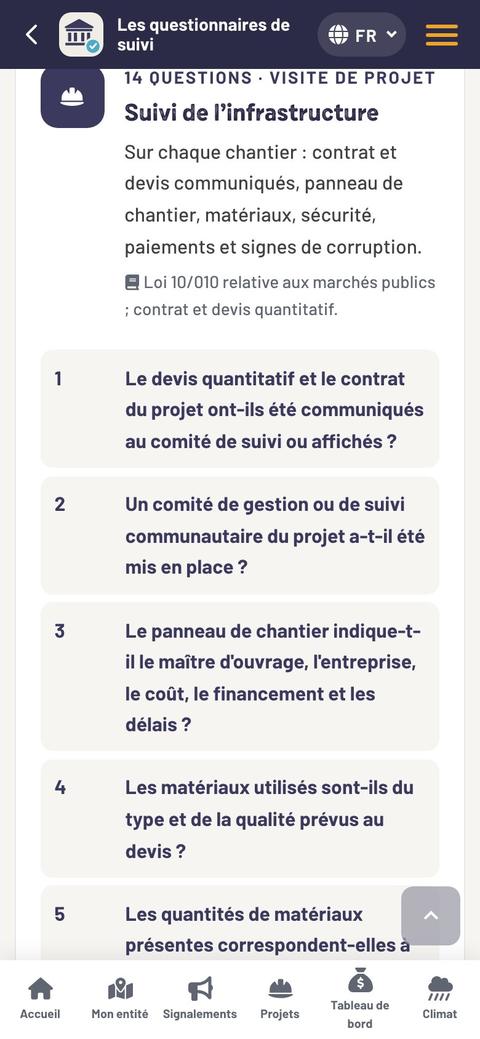
Sixteen questionnaires, simple questions
During an assessment, the assessor answers question by question (yes, partly, no, don’t know), for example:
- Does a site signboard show the cost, the company, the source of funding and the deadlines?
- Is the physical progress in line with the schedule?
- Are the materials used of the type and quality set out in the cost estimate?
- Have the works been stopped or delayed without a public explanation?
- Were the people informed and consulted about the project?
- Did you see signs of corruption (bribes, overbilling, a fictitious company)?
The questionnaires cover revenue, the execution of spending, transparency, participation in the budget, control, the works and each type of structure (road, school, health centre, water, electricity, market, public building).
In this guide
How to answer and what the score is for: answering a questionnaire. All the questions, questionnaire by questionnaire: the “Questionnaires” page.
Your protection
Your data are protected
Your name and your phone number are never published; they are deleted one year after your request is closed.
Sensitive subjects (security, civil registration, taxes, plots of land, health) are never made public.
The text of a report is published only after it has been checked; positions on the map are rounded to about 100 m.
Artificial intelligence helps; it does not decide.
Simple questions
You may be wondering…
- Is it free?
- Yes. Getting information, reporting and looking at ClimatCheck are free.
- Do I need an account?
- On the website, you open an account with a phone number; the password arrives by SMS. You can also write on WhatsApp to +243 82 733 2229, without an account.
- Will the service know it is me?
- Only the agents who handle your request see your name and your contact details. They are never published.
- Where does ClimatCheck stand today?
- The platform is online. Its first roll-out began in the City of Uvira and its three communes, Kalundu, Kavimvira and Mulongwe; today ClimatCheck follows the entities of the Province of South Kivu and, since November 2026, those of the Province of Tanganyika.
- How do I become an assessor?
- Fill in the “Become an assessor” form: CERC trains you on the questionnaires and assigns you an entity.
- Are the data open?
- The published figures can be consulted freely on the website. The datasets are provided on request to NGOs, donors and funders: write to info@cerc.cd.
- What is the legal framework?
- The Constitution of 18 February 2006, organic law no. 08/016 on decentralised territorial entities, law no. 11/011 on public finances, law no. 10/010 on public procurement and the Digital Code (ordinance-law no. 23/010) for data protection.
- Who is CERC?
- The Centre de Recherche sur l’Anti-Corruption (Anti-Corruption Research Centre), a Congolese civil society organisation that works with citizens for integrity and good governance. ClimatCheck is one of its platforms, with EduCheck (educheck.cd), HealthCheck (sante.cerc.cd) and UNCAC Tracker (uncactracker.cerc.cd).
A problem in your city or your commune?
Report it: the right service receives it, and you follow the answer until it is resolved.
AI helps; it does not decide
- It reads every request (text and photos) and suggests a category, the service concerned, a priority, a summary and, if needed, a translation into French.
- An agent of the City or the Commune reads every request, accepts or corrects the suggestion, and answers the resident in person.
- It publishes nothing, does not invent any fee or procedure, and is not used to score, rank or monitor people.
- Every suggestion and every answer produced by AI is marked as such.
“AI and your data” page: govcheck.cerc.cd/en/ai-and-your-data
Part
2
Follow a public service
A blocked drain, a tax demanded without a receipt, the price of a document: every request gets a reference, reaches the right service and stays visible until it is resolved.
- 2.1 The journey of a request
- 2.2 Submit a request, on the website and in the app
- 2.3 The data of a good report
- 2.4 Follow until it is resolved
- 2.5 On the administration’s side

Read part 2Close part 2
2.1 · The journey of a request
Submit, get a reference, follow the answerFree · Anonymous if you wish · No account is needed
Submit
You request a service or you report a problem, in your language, with photos if you can.
Get a reference
ClimatCheck gives you a reference number (for example DS-2026-00001) and a tracking code. Keep them.
Follow the answer
The right service receives the request and answers. You confirm yourself when the problem is fixed.
Two kinds of requests
- Request a service: price of a document, certificate, civil registration, information, audience or appointment.
- Report a problem: waste, drain, road, water, electricity, tax without a receipt, works stopped, flood…
Three ways, your choice
The website
govcheck.cerc.cd/en/demande-de-service
The assistant first answers from what the entity has published; otherwise, the request goes to an agent.
+243 82 733 2229
Write the problem and the place, add a photo. You receive the reference and the answers on WhatsApp.
The Android app
“Request a service”, without an account, with a connection. “Report a problem”, with your account, even without network: the report is sent when the connection returns. See requesting a service in the app and reporting a problem in the app.
Emergency
Danger to life, fire, violence: first call the emergency services or the police. ClimatCheck is not an emergency number.
2.2 · On the website
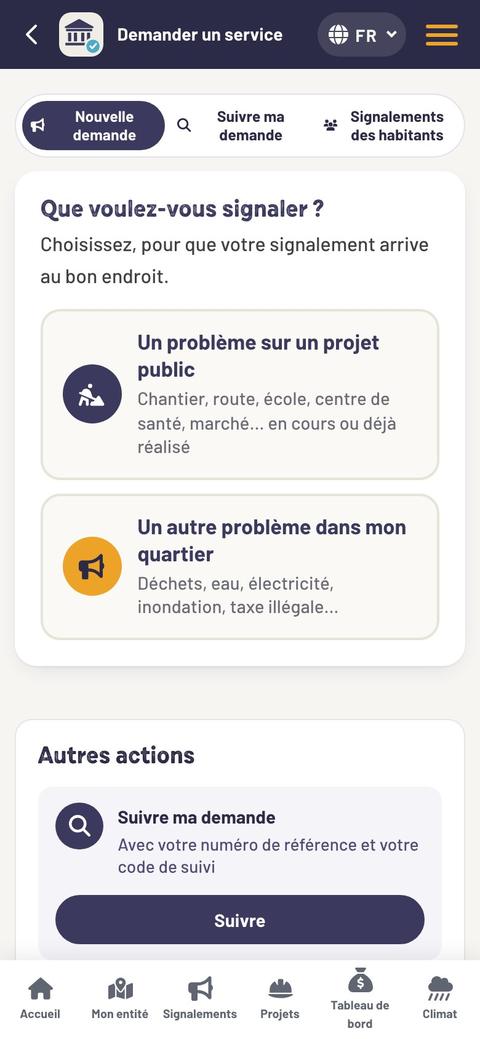
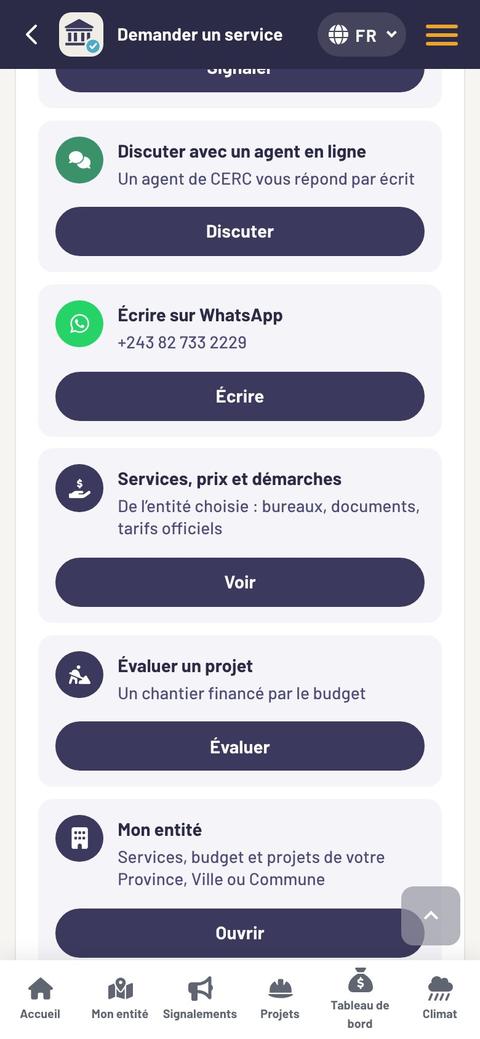
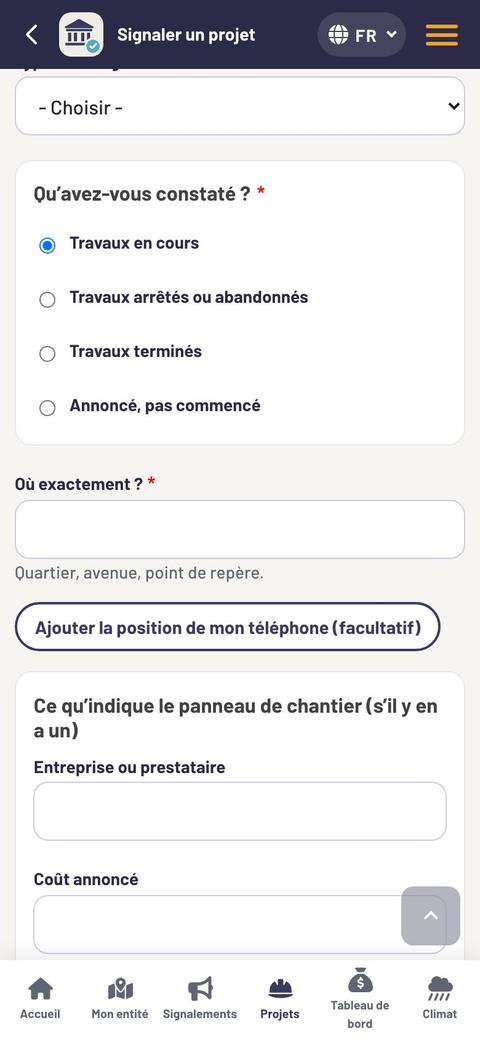
Submit a request, step by stepFour screens: Where? · What? · Details · Your contact details. The same steps in pictures, just below; in the Android app: requesting a service in the app and reporting a problem in the app.
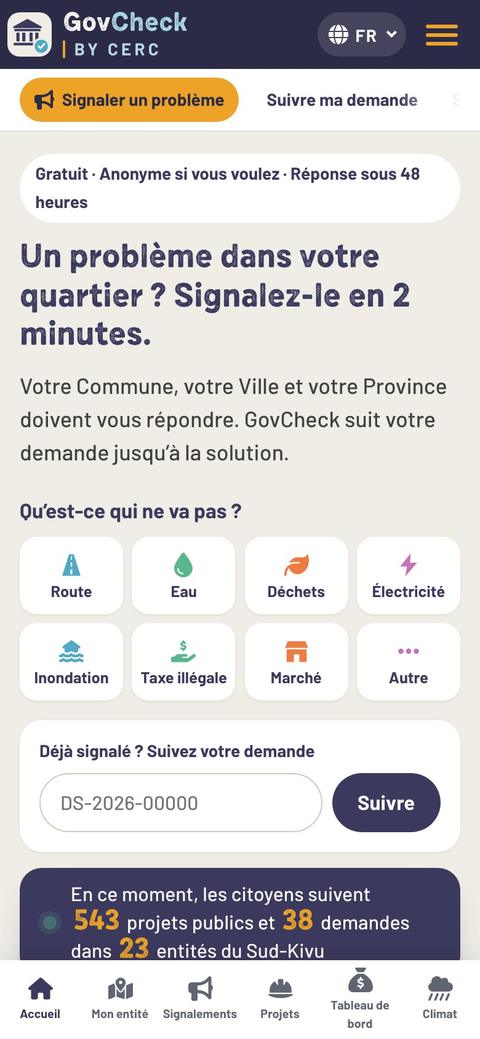
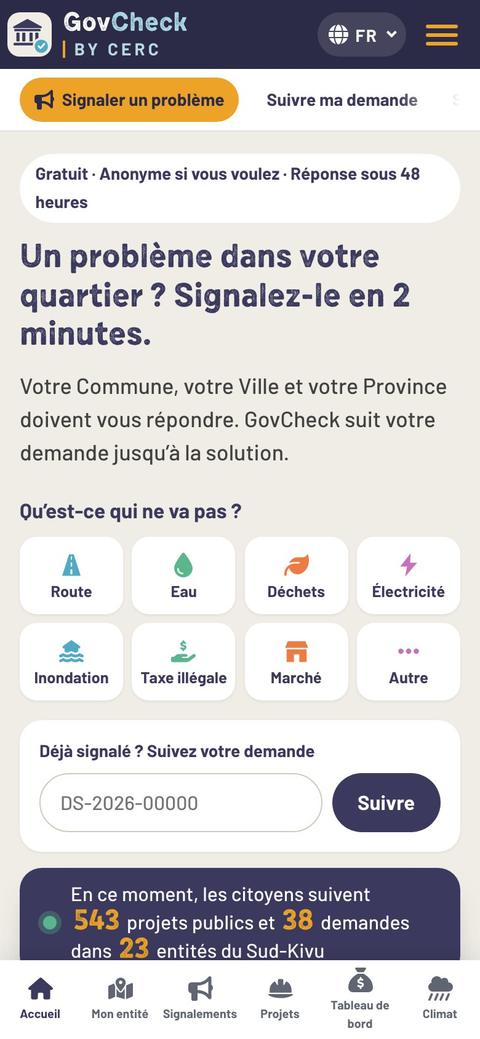
Open “Report a problem”
From the home page of the website. For a document, a price or a piece of information, open “Request a service”.
Say what you are reporting
“A problem with a public project” (works, road, school, market) or “Another problem in my neighbourhood” (waste, water, electricity, illegal tax…).
Screen 1 · Where?
The Province, the City or the territory, then the Commune: it is the Commune that will receive the request. Tap “Continue”.
Screen 2 · What?
Tap the category in the list: the next screen opens by itself. Not sure? Choose “I don’t know”.
Screen 3 · Details
Answer the short questions of the category (which problem, since when, houses flooded or not, receipt given or not…).
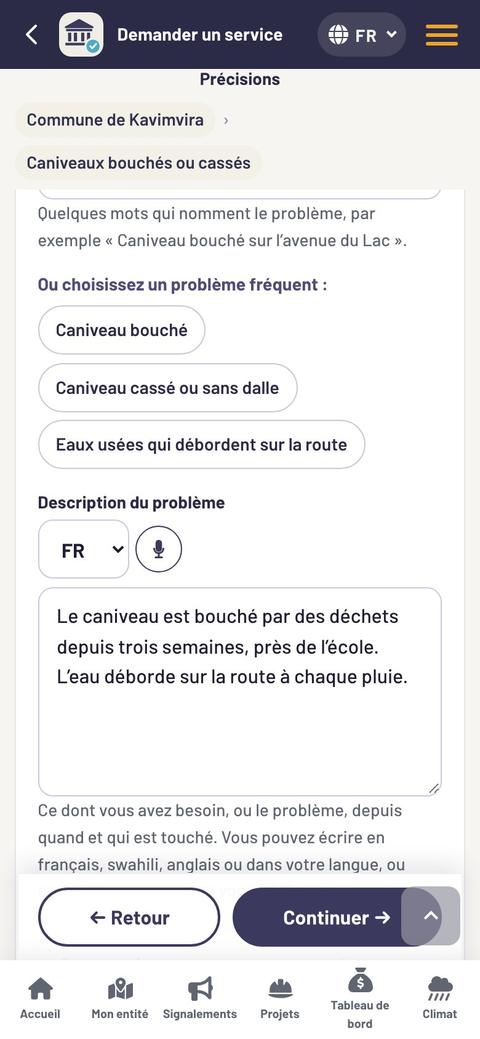
Give a title and describe
Choose a suggested title or write your own, then describe in your language: what, where, since when. The microphone records a voice message of 3 minutes at most; it is never published.
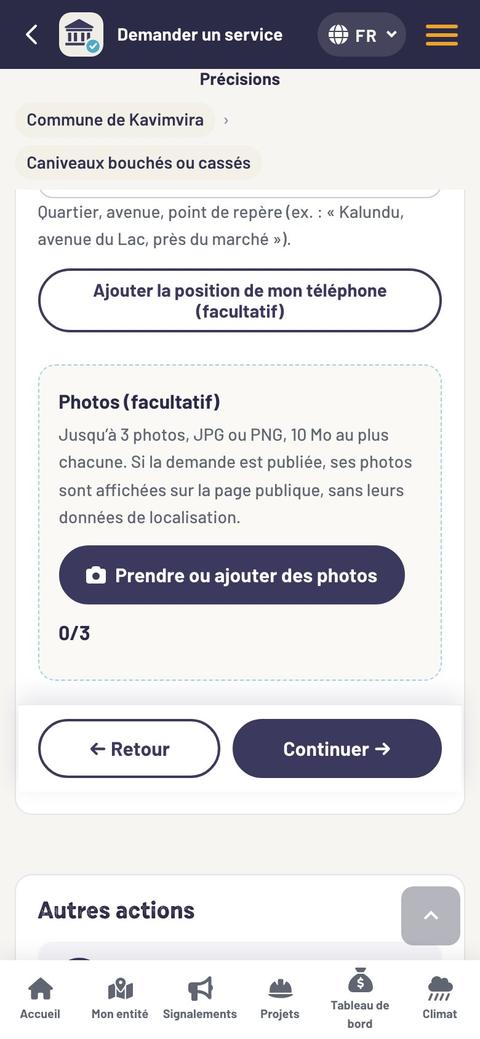
Show the place, add photos
Write the neighbourhood, the street and a landmark; add the phone’s position if you wish. Up to 3 photos (JPG or PNG, 10 MB each): the problem, not the people.
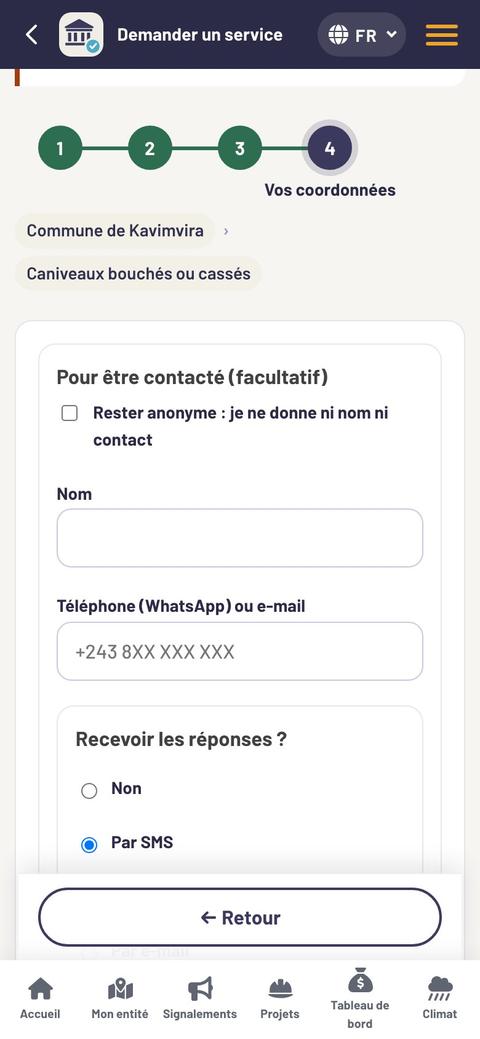
Screen 4 · Your contact details
Tick “Stay anonymous”, or leave a name and a number to receive the answers by SMS, WhatsApp or e-mail. They are never published.
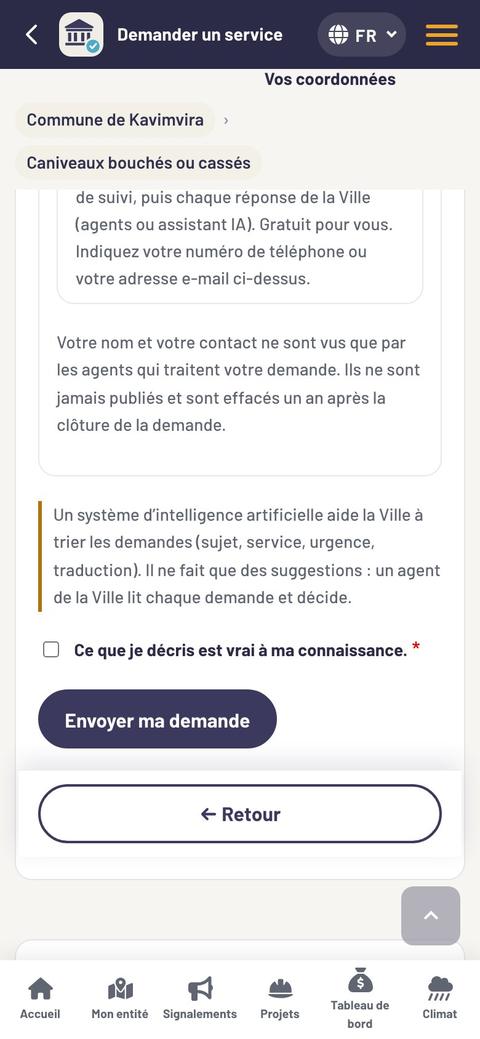
Send and write down the reference
Tick “What I describe is true to the best of my knowledge”, tap “Send my request”, then write the reference and the tracking code in a notebook.
On ClimatCheck
How to report, on one page: govcheck.cerc.cd/comment-signaler
2.2 · In pictures
Report a problem, screen by screen
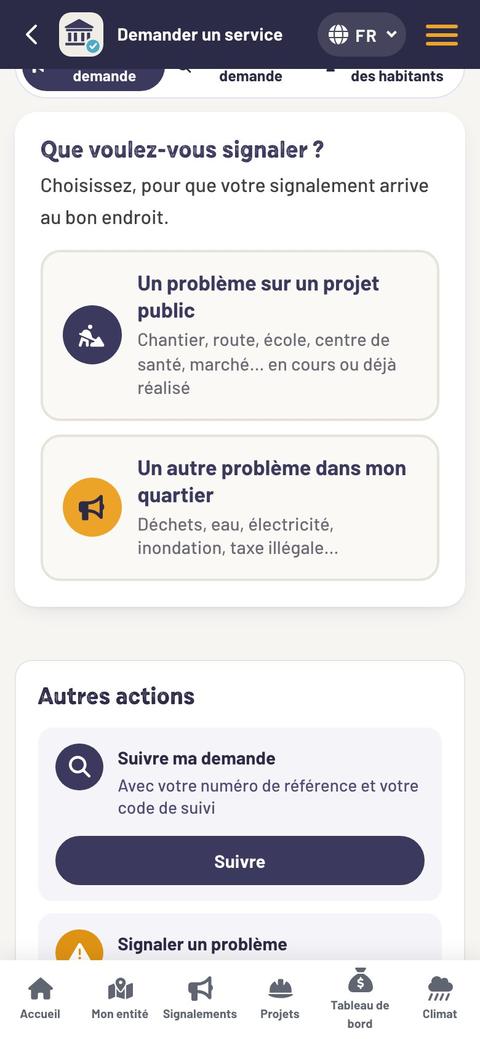
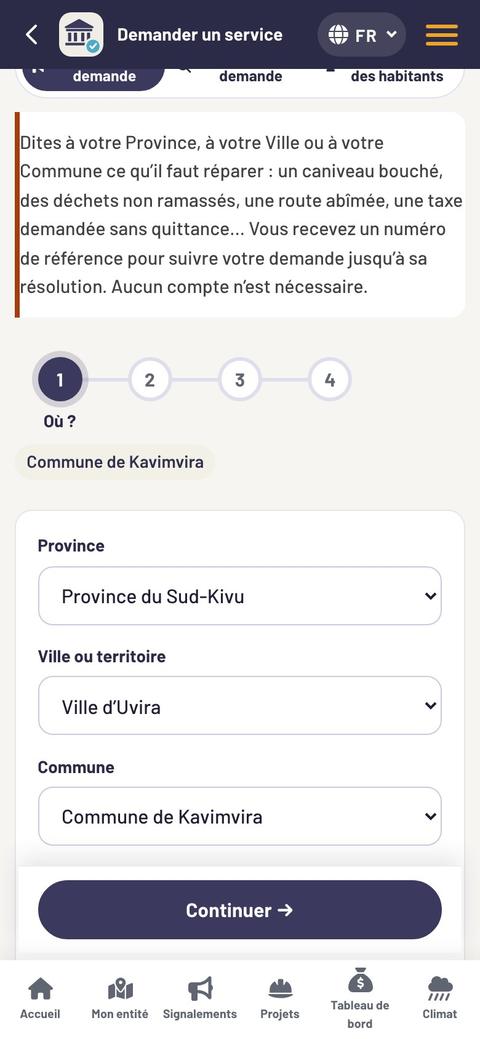
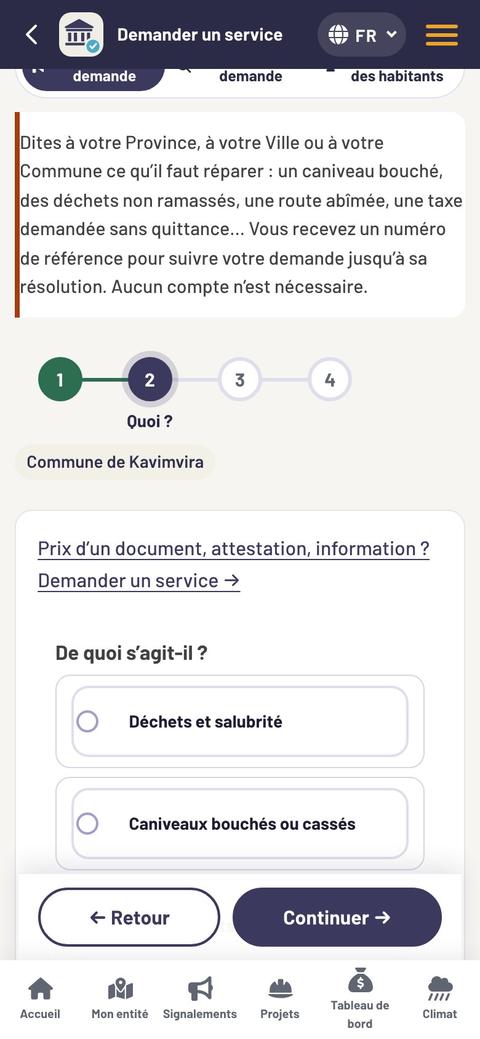
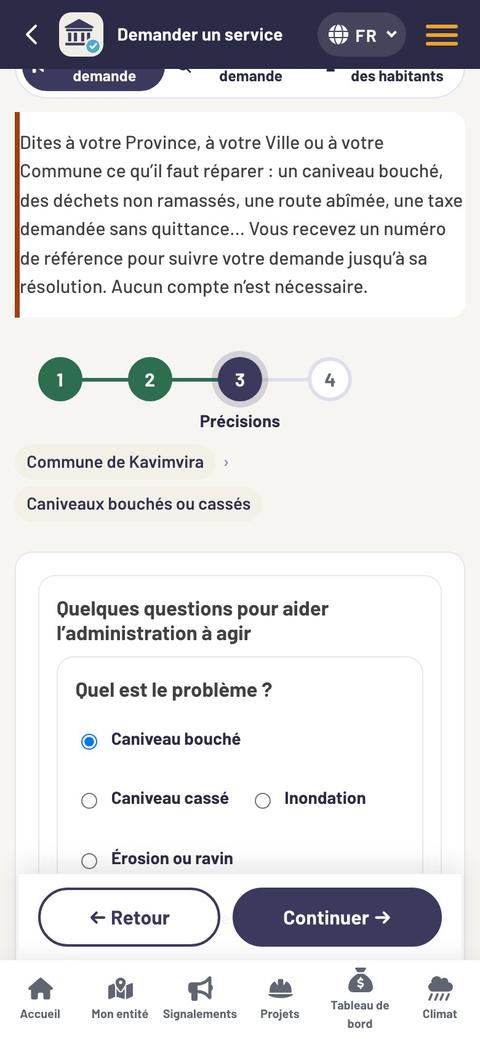
Write it down straight away
Your reference number:
DS-2026-…and your tracking code. Without them, you will not be able to follow the request.
Screens of the website govcheck.cerc.cd on a phone, November 2026. Example filled in for this guide: it was not sent. The screens of the Android app: next sections.
2.2 · In the Android app
Request a service in the app, without an accountFive steps: Where? · Your question · What? · Details · Your contact details. An Internet connection is needed.
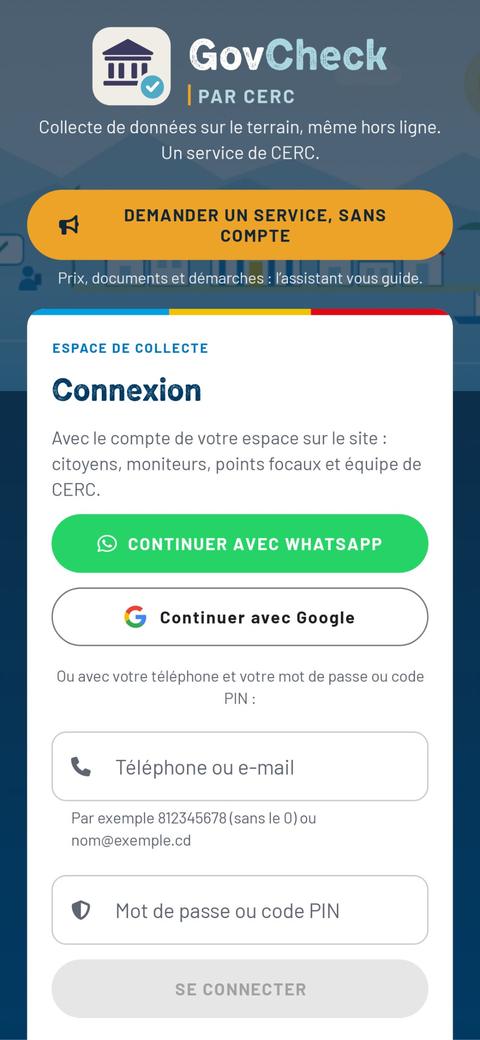
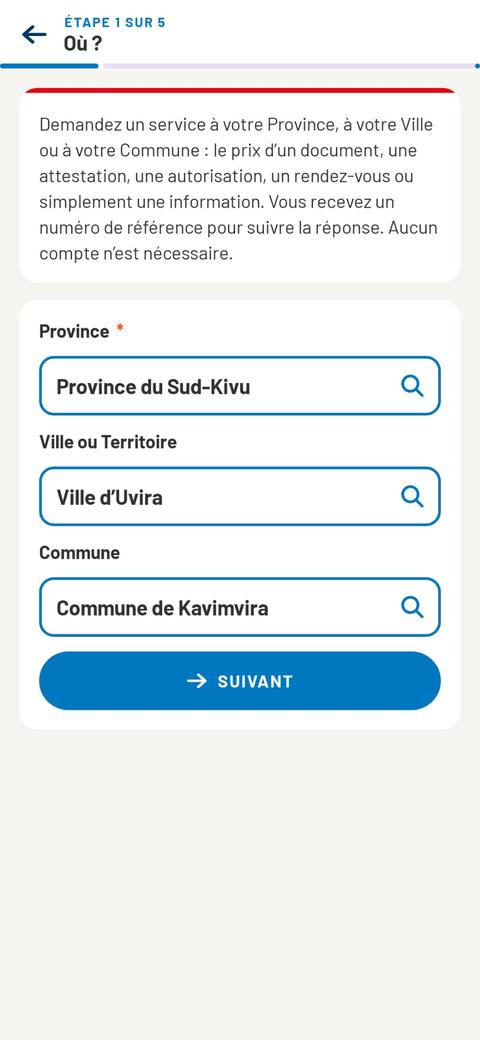
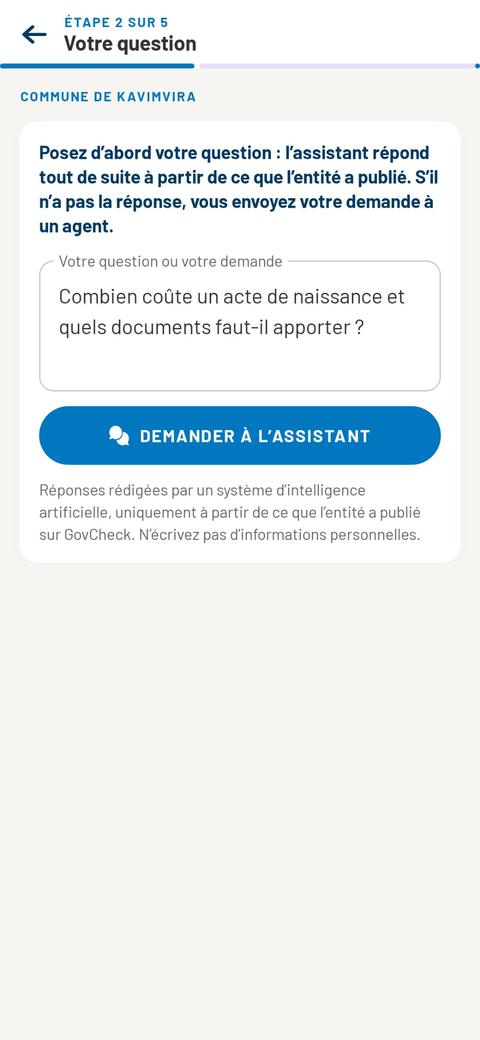
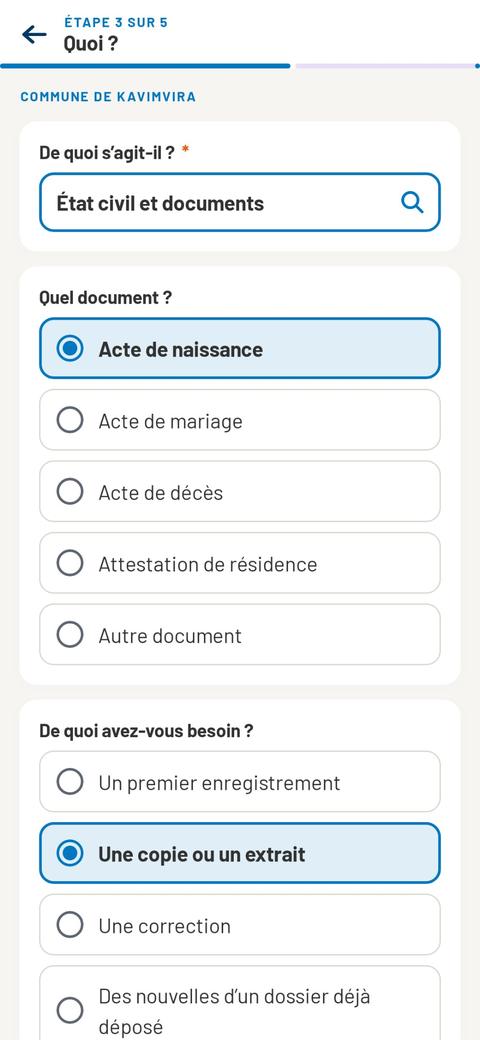
Steps 4 and 5
Details
Write your request in a few sentences.
Your contact details
Your phone number: the agent answers you on this number. Your name, if you wish: it is never published.
Then tap “Send my request”.
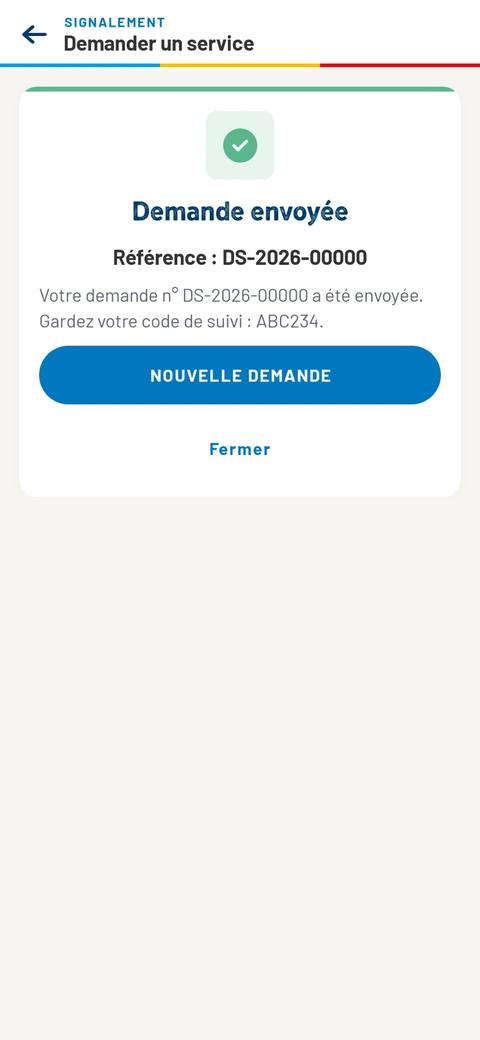
The assistant answers first
At step 2, it answers straight away from what the entity has published. “That answers my question”: you are done. “I did not find the answer”: tap “Please contact the Municipality directly” to send your request to an agent, or “Or talk to an available agent” to write to an agent on WhatsApp.
After sending
The agent answers you on the number you left. You can also follow the request on the website, in “Track my request”, with the reference and the tracking code. “New request” starts again at step 1.
Remember
This request is sent straight away: you need a connection. The reference and the tracking code are used in “Track my request” (see follow until it is resolved). Do not write personal information in the question you ask the assistant.
Screens of the ClimatCheck 1.2.7 app for Android, November 2026, with sample data: nothing was sent.
2.2 · In the Android app
Report a problem in the appWith your account, even without network. Five steps: Place and position · The problem · Description · Your contact details · Review.
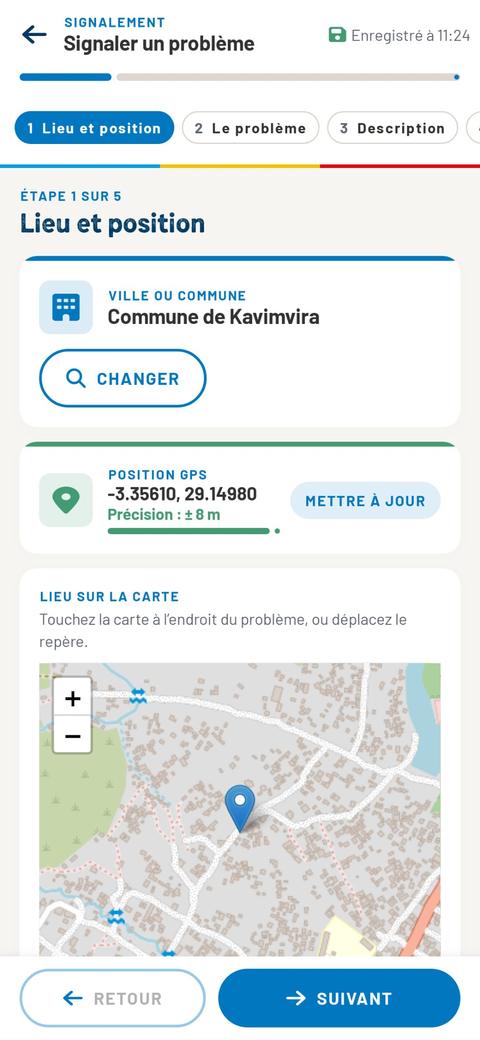
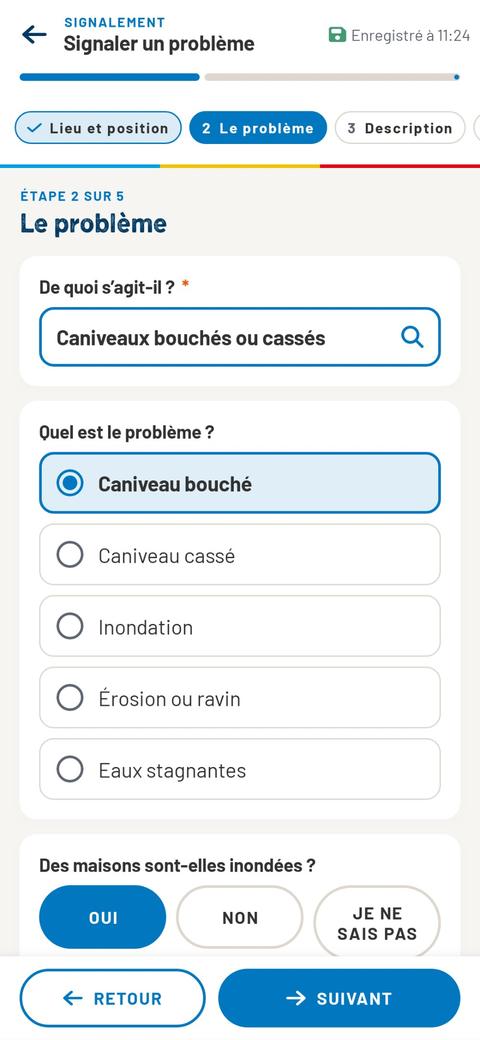
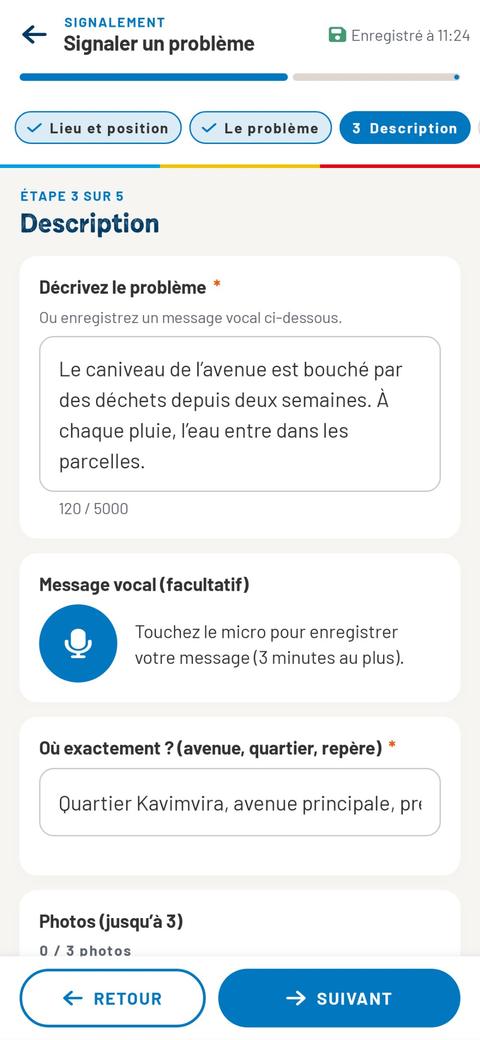
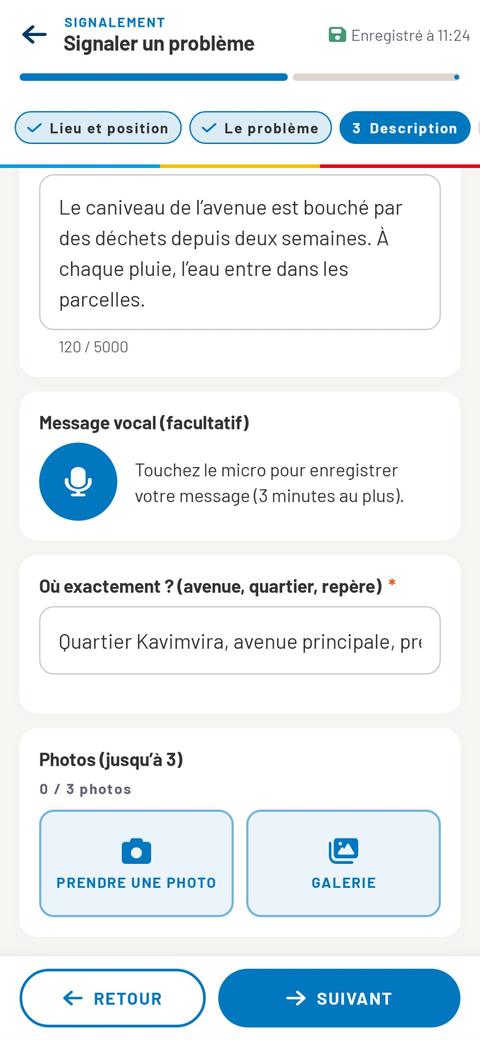
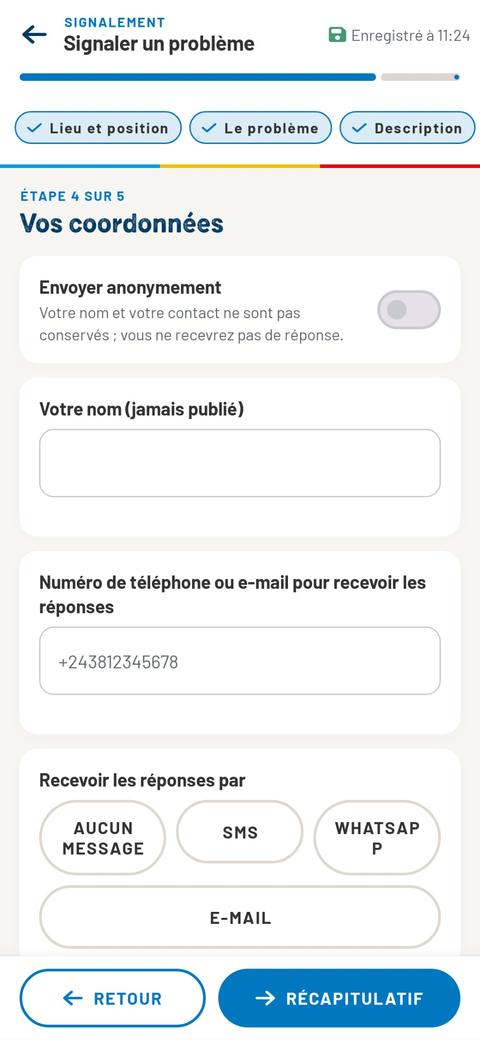
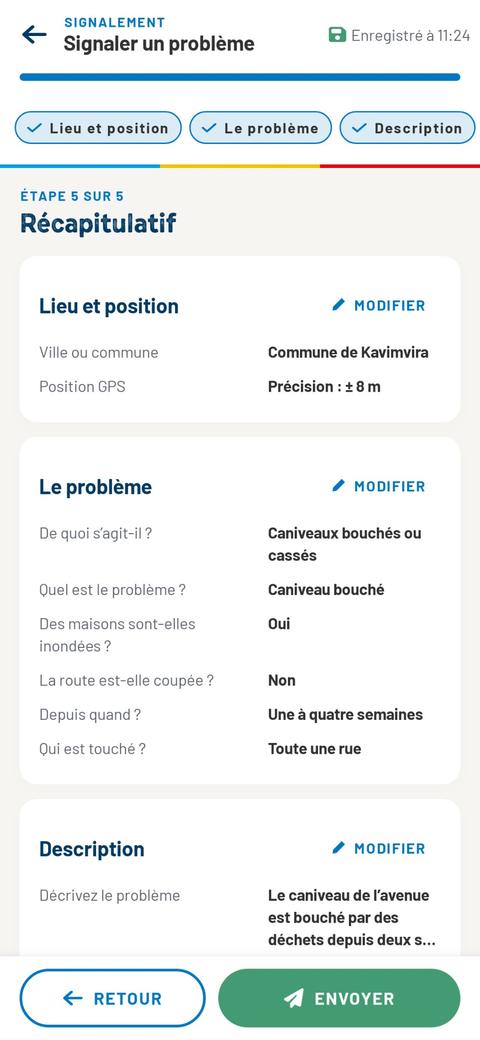
To start
Sign in (see the app, screen by screen), open the “Forms” tab, then “Report a problem”. Without an account, report on the website or by WhatsApp; for a service request, see the section Request a service in the app.
Without network
The draft is saved by itself on the phone. After “Send”, the report waits in “My submissions” with the label “Waiting for the network” and is sent when the connection returns. The map needs the Internet: without a connection, record the phone’s GPS position.
Remember
“My submissions” then shows the reference (DS-2026-…) and the step of the request. Photograph the problem, not the people. With “Send anonymously”, you do not receive an answer.
Screens of the ClimatCheck 1.2.7 app for Android, November 2026, with sample data: nothing was sent. Map: © OpenStreetMap.
2.3 · The data to collect
The data of a good reportThe more precise the request, the faster the right service can act.
| Data item | What to note | Required |
|---|---|---|
| Entity | The City or the Commune where the problem is. | Yes |
| Category | The subject, from the list; “I don’t know” if you are not sure. | Yes |
| Title | One sentence: “Blocked drain, avenue du Marché”. | Yes |
| Description | What, where, since when, who is affected, what has already been tried. | Yes |
| Place | The phone’s position or the pin on the map, plus a well-known landmark. | Recommended |
| Photos | 1 to 3 photos of the structure or the problem, in daylight, one wide view and one close view. | Recommended |
| Voice message | If writing is difficult: 3 minutes at most, never published. | Optional |
| Proof of payment | For a tax: amount demanded, date, place, receipt given or not. | If a tax |
| Contact | Name and number to receive the answers; otherwise the request stays anonymous. | Optional |
What not to write
The name of a person you accuse, an insult, a photo of a face, medical information about someone else. Describe facts: the place, the date, the amount.
The categories of problems
- Waste and cleanliness
- Blocked or broken drains
- Roads, bridges and streets
- Street lighting
- Drinking water and sanitation
- Markets
- Electricity
- Fuel and petroleum products
- Security, violence and crime
- Taxes, fees and illegal collections
- Town planning, plots and building permits
- Works or project funded by the budget
- Expired products and medicines
- Customs fraud
- Irregular stay
- Suspected cases of cholera, Ebola or another epidemic
- Hotels, restaurants and bars
- Fishing and livestock
- Agriculture
- Floods, rising rivers and lake
- Erosion, gullies and landslides
- Tree cutting, deforestation and bush fires
- Other
- I don’t know
The service requests
- Civil registration and documents
- Town planning, plots and building permits
- Get a document or a certificate
- Price of a document or a service
- Ask for information
- Audience, authorisation, appointment
- Other
Remember
Sensitive subjects (security, civil registration, taxes, plots of land, health) are never made public: only the agents who handle the request read them.
2.4 · After sending
Follow until it is resolved
Open “Track my request”
Enter the reference and the tracking code
You see the current step and the answers of the service. If you left a number, they also arrive by SMS or WhatsApp.
Answer if the agent asks for a detail
One more photo, the exact place, a date: answer quickly, and the request moves forward.
Correct it if you made a mistake
The author can correct their report twice, including the place on the map.
Confirm the resolution
Only the resident can say whether the problem is really fixed. Go and see, then confirm — or say that it is not fixed.
Rate the service
From 1 to 5 stars. Your rating feeds the service’s results sheet.
If nothing moves
- Check the step in “Track my request”.
- Add a detail or a recent photo.
- Talk about it to your Local Development Committee or to an assessor: requests left without an answer are presented to the authorities (see make the findings heard).
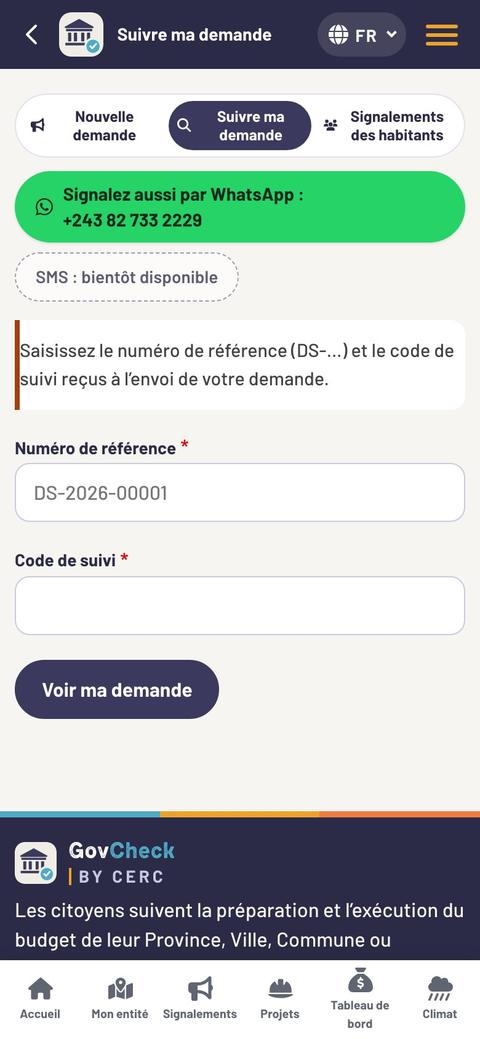
2.4 · In pictures
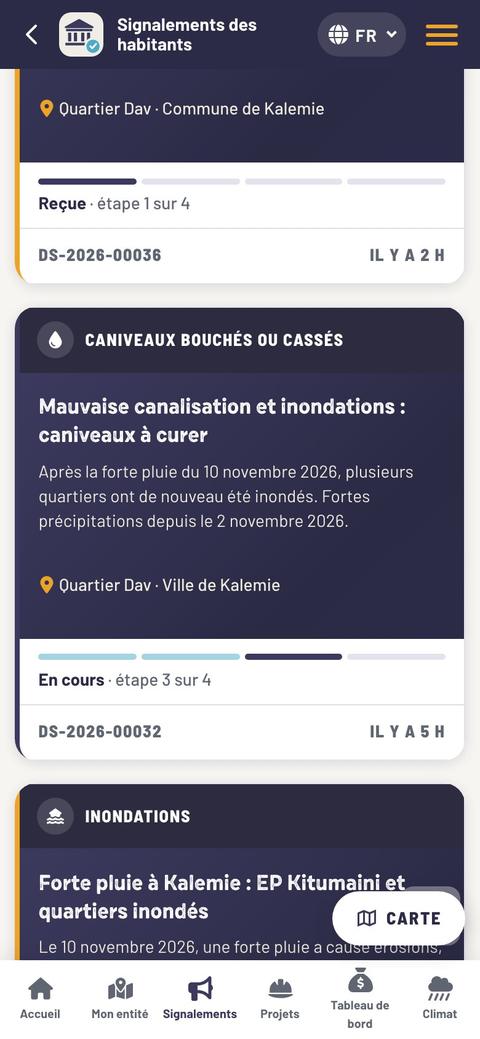
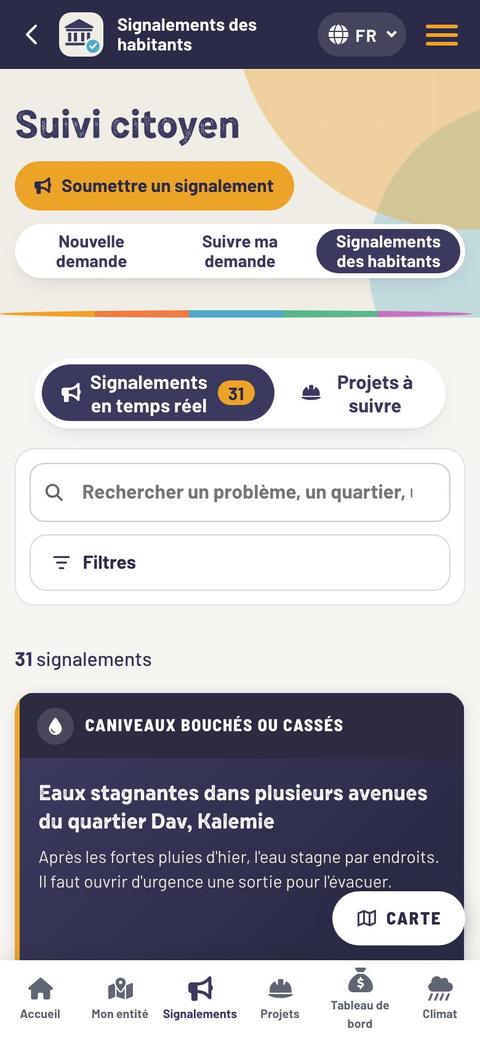
Track my request, screen by screen
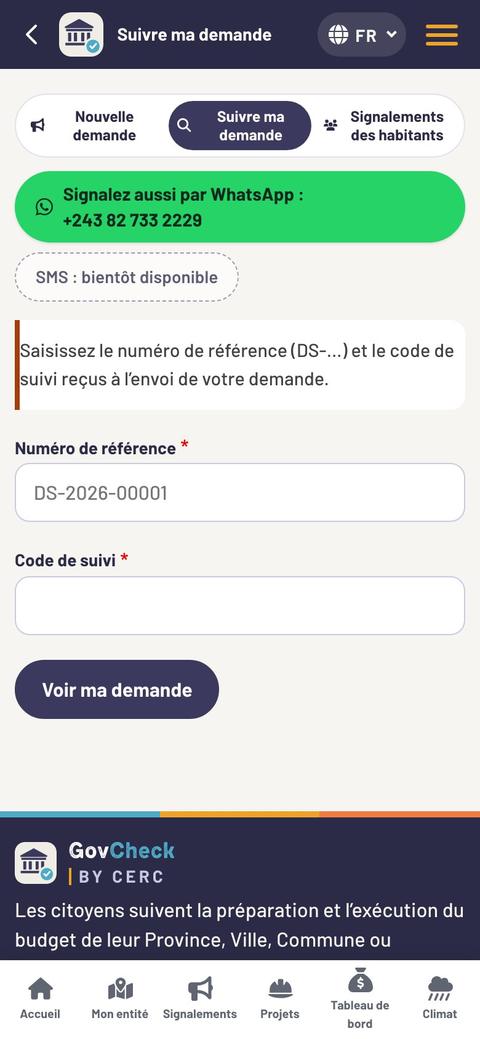
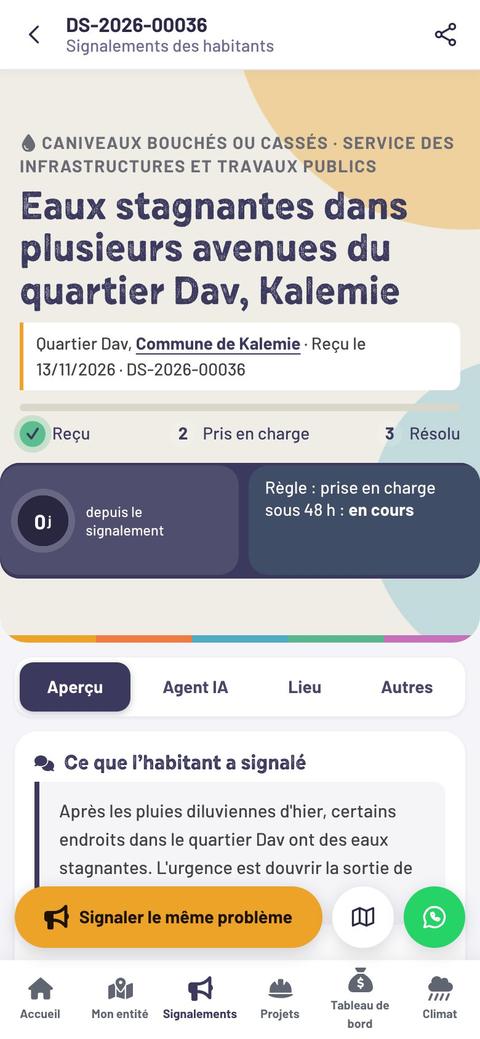
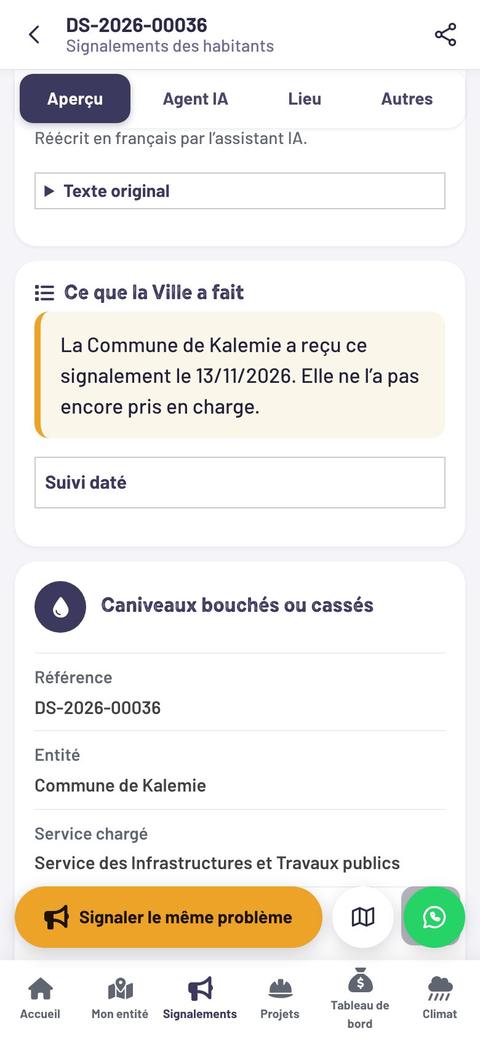
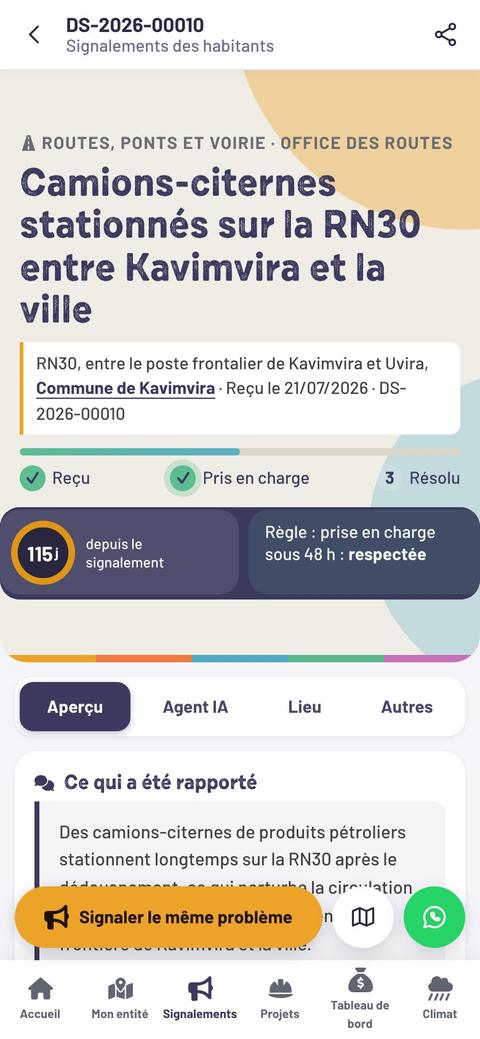
Remember
The rule shown on every request: acknowledged within 48 hours. The number of days since the report stays visible until it is resolved — this is what lets residents and authorities see what is waiting.
2.5 · For the agents of Provinces, Cities and Communes
On the administration’s side: receive, handle, resolve
Open “My space” every day
Each service has its account. The new requests for your entity arrive there; a WhatsApp alert lets you know.
Read the request and the AI suggestion
AI suggests a category, the service concerned, a priority, a summary and a translation. Accept or correct: you are the one who decides.
Acknowledge, or transfer
“Handle the request” moves the request to “Acknowledged”. If it is not your responsibility, “Transfer to” sends it to the right service or to the competent body.
Answer the resident
Say what will be done and when; ask for a detail if needed. Give the planned resolution date.
Mark it “Resolved” when it is fixed
The resident is invited to confirm and to rate the service.
What is measured and published
| Indicator | What it shows |
|---|---|
| Resolution rate | The share of admissible requests that have been resolved. |
| Median time to acknowledgement | The time between “Received” and “Acknowledged”. |
| Median time to resolution | The time between “Received” and “Resolved”. |
| Satisfaction | The residents’ rating, from 1 to 5 stars. |
Golden rule
No cash payment to an agent: the resident pays at the bank with the Note de Perception (payment slip) and gets a receipt.
On ClimatCheck
The results of each service: the “Requests and services” tab of budget tracking, govcheck.cerc.cd/en/tableau-de-bord
Part 2 · In short
Good to know before you report
Your identity is protected
Your name and your contact details are never published. They are deleted one year after the request is closed.
Never cash to an agent
Pay at the bank with the Note de Perception and always ask for a receipt. A tax demanded without a receipt can be reported.
In your language
French, Swahili, Lingala, English or a local language: AI translates for the agent, the agent answers.
My checklist · Before sending
- I have chosen the right City or Commune.
- My title says the problem and the place in one sentence.
- I have written since when and who is affected.
- I have placed the pin on the map.
- My photos show the problem, not people.
- I do not accuse anyone by name: I describe facts.
My checklist · After sending
- I have written down the reference and the tracking code.
- I look at “Track my request” after 48 hours.
- I answer the agent’s questions.
- I go and see on the spot before confirming.
- I rate the service from 1 to 5 stars.
Remember
- One request = one reference + one tracking code.
- Three steps: Received, Acknowledged, Resolved.
- It is the resident who confirms the resolution.
- The figures of each service are public.
Take action
Choose a problem you see every day in your street. Take two photos, open ClimatCheck or WhatsApp, and report it today.
Part
3
Follow a project
A road, a school, a water point listed in the budget: citizens go and see on the spot whether the project exists, whether it is moving forward and whether it is well done, backed by geolocated photos.
- 3.1 Find and understand a project
- 3.2 Prepare the visit
- 3.3 On the spot, step by step, and in the app
- 3.4 The data to collect during a visit
- 3.5 Send, check, publish

Read part 3Close part 3
3.1 · The “Projects” page
Find and understand a projectThe investment projects of the voted budgets, visited by citizens.
Open “Projects”
govcheck.cerc.cd/en/projets. In the app, you choose the project in the form of its sector (see the visit in the app).
Filter
Drop-down lists: Province, City or Commune, Status and Sector (twelve sectors: education, health, water, roads and bridges, markets, electricity…).
Open the project page
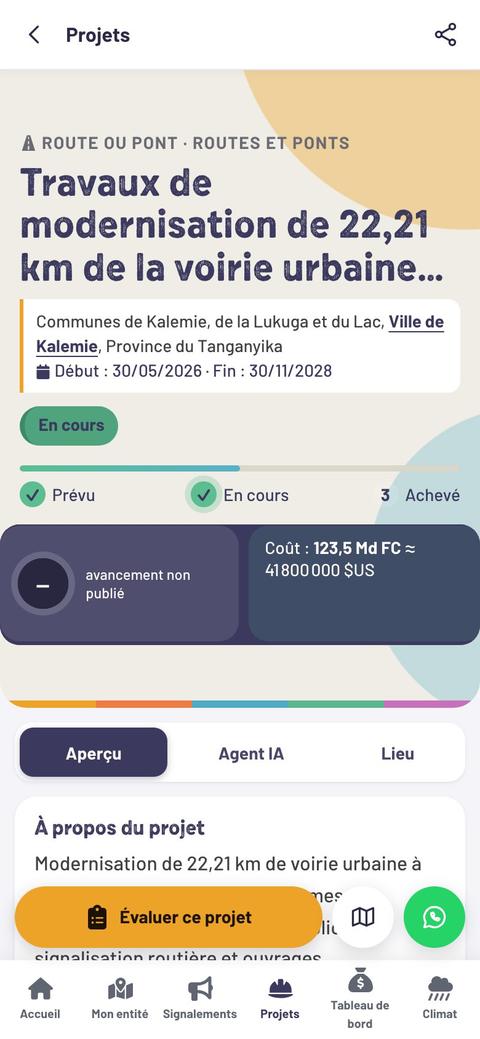
It shows the entity, the sector, the place, the amount, the deadline and the status. Three tabs: Overview, AI Agent, Place.
Read the visits already published
Score of each questionnaire, answers, photos: you know what was found, and when.
The project is not in the list?
Report it: govcheck.cerc.cd/en/projets/signaler. It is checked, then added; you will be able to follow its implementation.
The five statuses of a project
| Status | What it means |
|---|---|
| Planned | Listed in the budget; the works have not started. |
| In progress | The works have started and are moving forward. |
| Completed | The structure is finished; it remains to be seen whether it is used. |
| Stopped | The works started, then stopped. |
| Abandoned | The project will not be finished. |
Remember
In the average progress, a planned project counts for 0% and a completed project for 100%. Progress is checked during the visits.
On ClimatCheck
A problem at the works? “Report a problem”, then “A problem with a public project”: the request is linked to the project page.
3.1 · In pictures
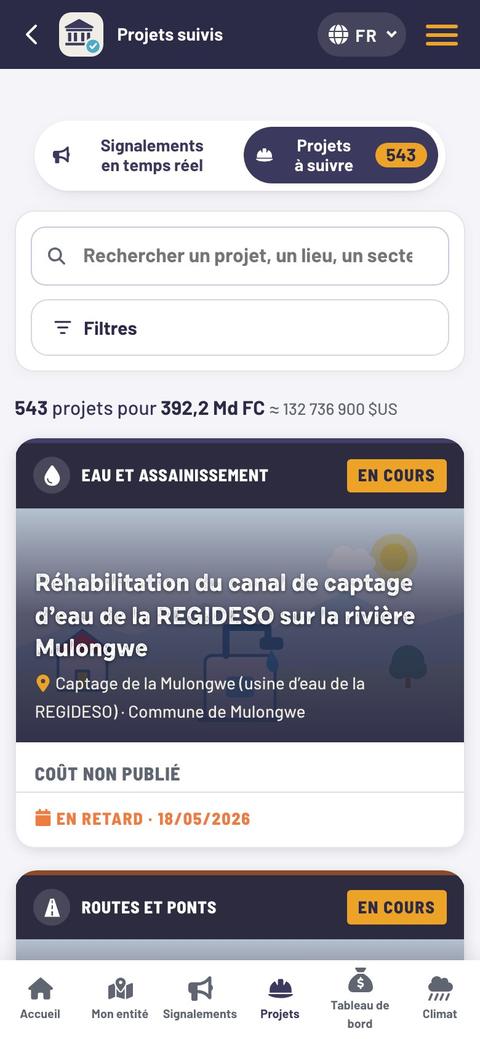
From the list of projects to the visit, screen by screen
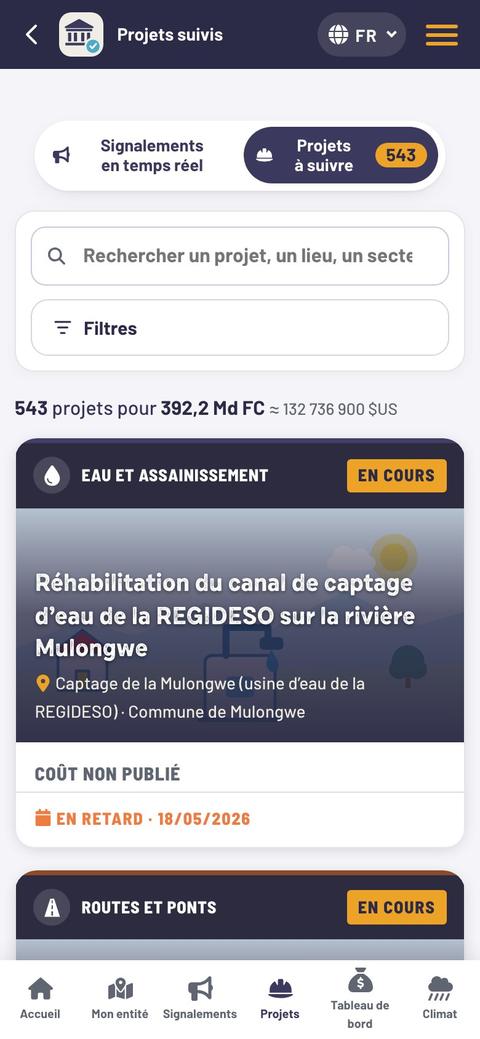
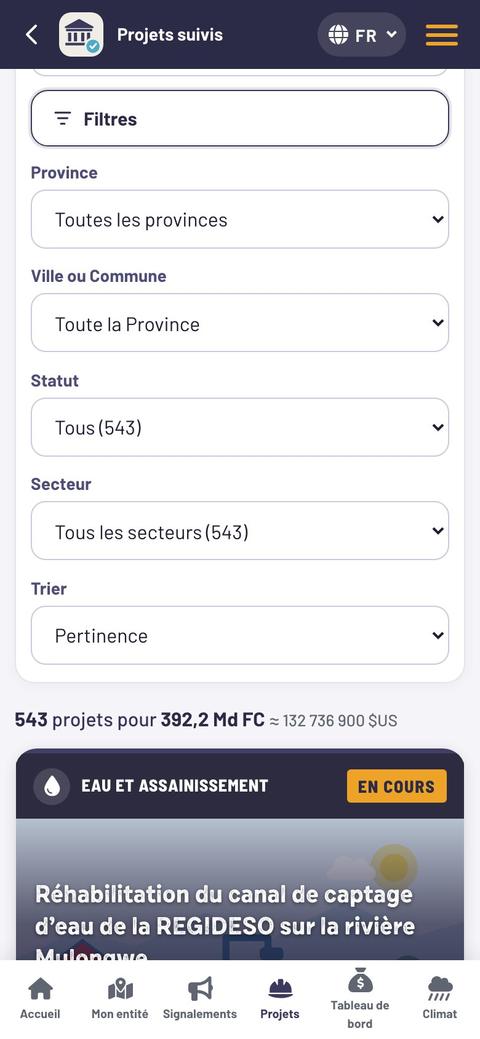
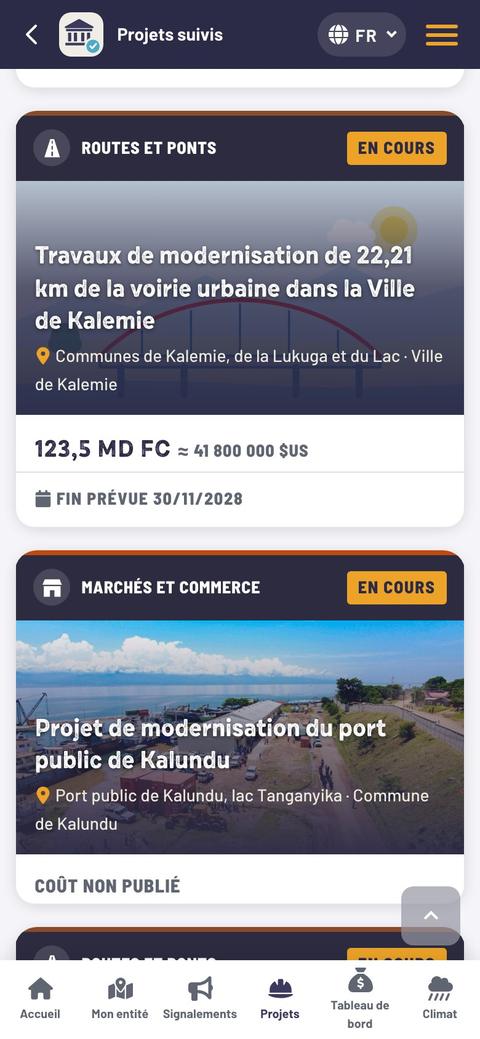
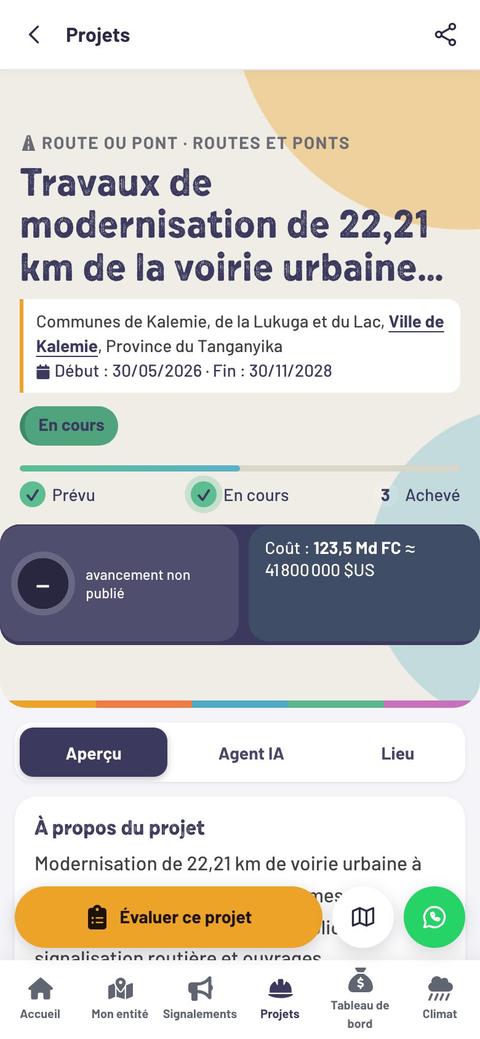
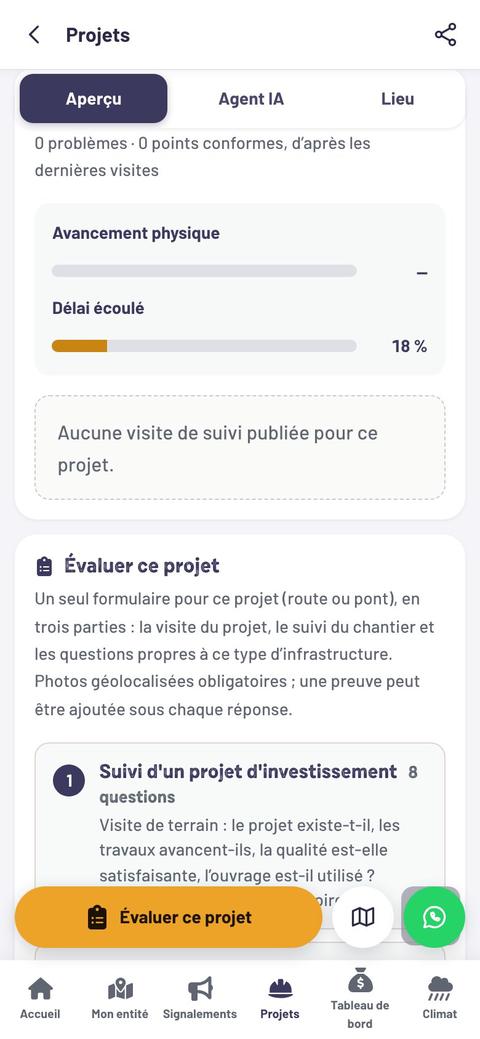
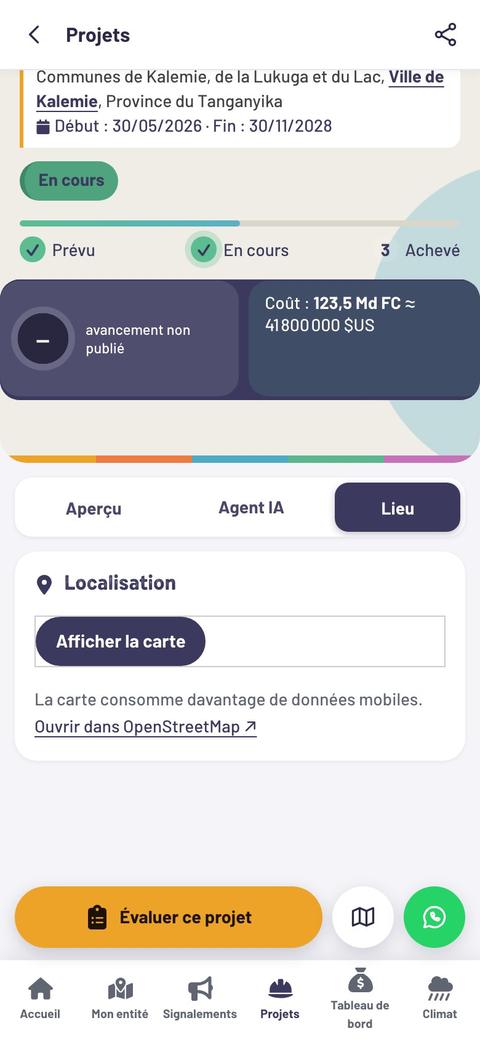
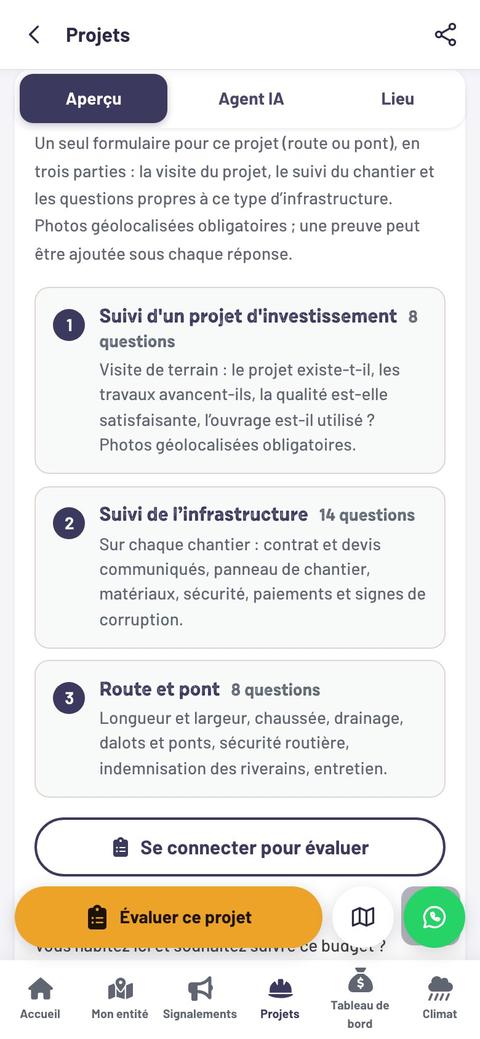
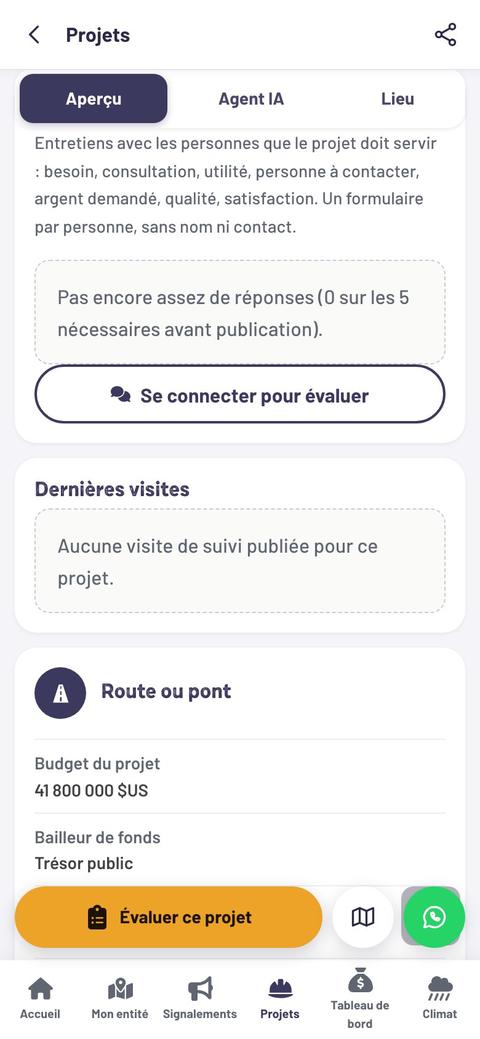
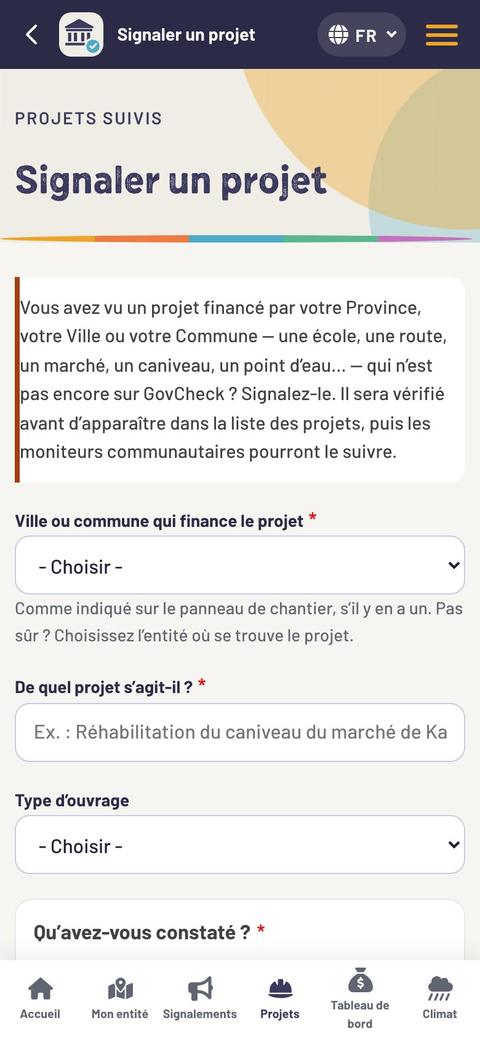
Screens of the website govcheck.cerc.cd on a phone, November 2026. Project shown: modernisation of the urban roads of the City of Kalemie.
3.2 · Before going into the field
Prepare the visit
Become an assessor
You apply with the “Become an assessor” form.
The SuperMonitor of your Province calls you and trains you.
Your account is opened: you sign in with your phone number.
You visit and assess with the app; CERC checks every report before it is published.
On ClimatCheck
No experience is needed: a phone and the wish to know are enough. govcheck.cerc.cd/en/devenir-moniteur-communautaire Resident: with your account, the app already opens the seven sectors.
Gather the documents
What the project must display or provide:
- the project’s line in the voted budget;
- the contract and the cost estimate;
- the name of the company and the source of funding;
- the planned start and end dates;
- the reports of the earlier visits on ClimatCheck.
If a document is missing, ask for it in writing (see template letter). A refusal or a silence is also a piece of data: note the date.
Give notice
Tell the people in charge about the purpose of the visit: the entity’s service, the neighbourhood chief, the site manager. An announced visit goes better, and monitoring looks for the solution, not the punishment.
Prepare the phone
- Install the ClimatCheck app.
- Download the lists (places, questionnaires) once on Wi-Fi: after that the app works without a connection.
- Charge the battery; turn on the position (GPS).
- Read the project’s questionnaires again before you leave (see the “Questionnaires” page).
My checklist · Before leaving
- I know the announced amount, company and deadlines.
- The people in charge have been told.
- There are two of us.
- Phone charged, lists downloaded, GPS on.
- Notebook, pen, tape measure if possible.
3.3 · The visit
On the spot, step by step
Introduce yourself
Say who you are, on whose behalf you come and why. Stay polite, even if you are refused.
Open the project and tap “Assess this project”
On the website, the visit opens the project questionnaire, the infrastructure questionnaire and the one for its type of structure. In the app: “Forms”, the sector, then the project (see the visit in the app).
Look for the site signboard
Does it show the cost, the company, the source of funding and the deadlines? Photograph it.
Walk around the structure
Does the project exist at the announced place? Estimate the progress in % and compare it with the schedule.
Look at the materials and the quality
Type and quality as set out in the cost estimate? Cracks, leaks, finishes? Do the quantities match the progress?
Check safety
Is the work site fenced off to protect people, children in particular? Is there any damage to the environment?
Listen to the beneficiaries
The “Survey of direct beneficiaries” questionnaire: need, consultation, usefulness, money asked for, satisfaction. No name is noted.
Take geolocated photos
Of structures, never of people: an overall view, the signboard, the details that prove each answer.
Answer question by question
Yes, Partly, No or Don’t know, with a note and a proof. What you have not seen, you do not know.
Send
Without network, the report stays on the phone and is sent automatically when the connection returns.
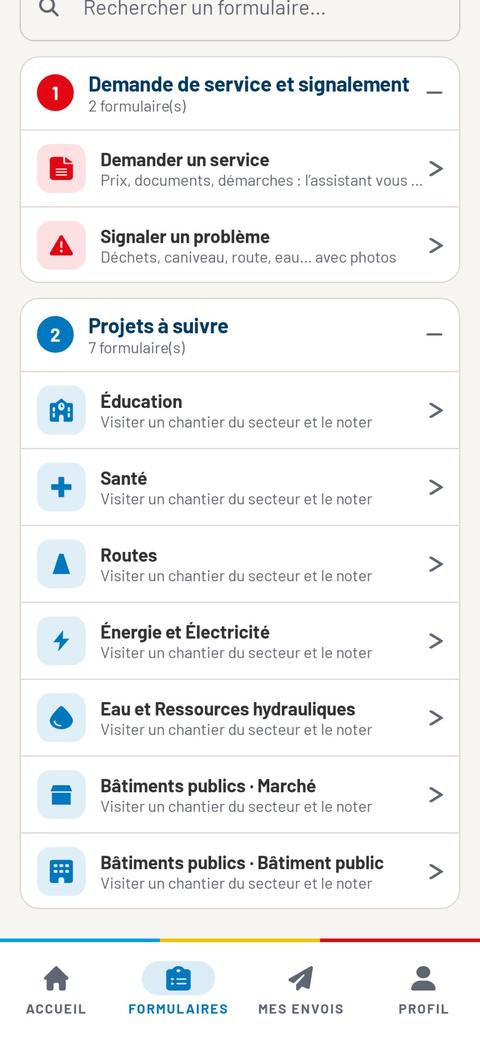
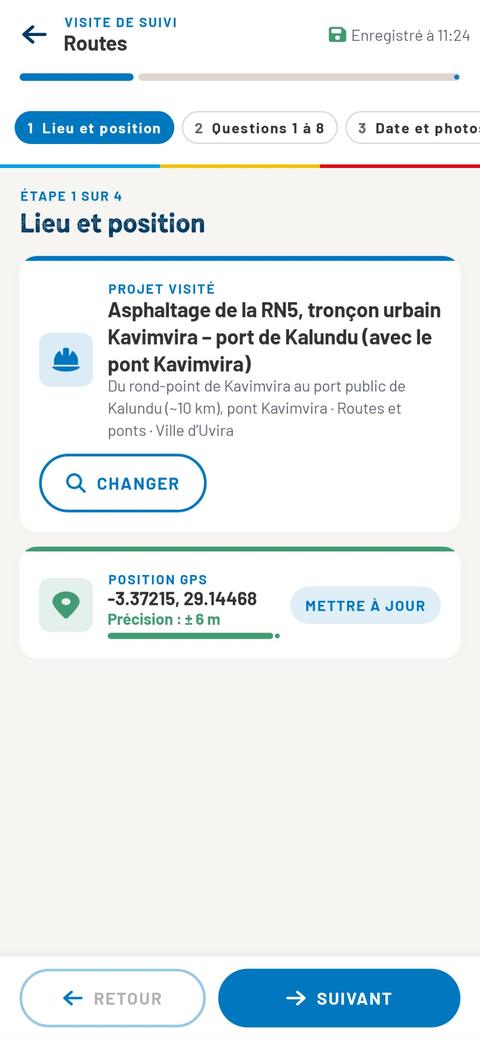
3.3 · In the Android app
The visit in the app, screen by screenOne form per sector. Four steps: Place and position · Questions · Date and photos · Review.
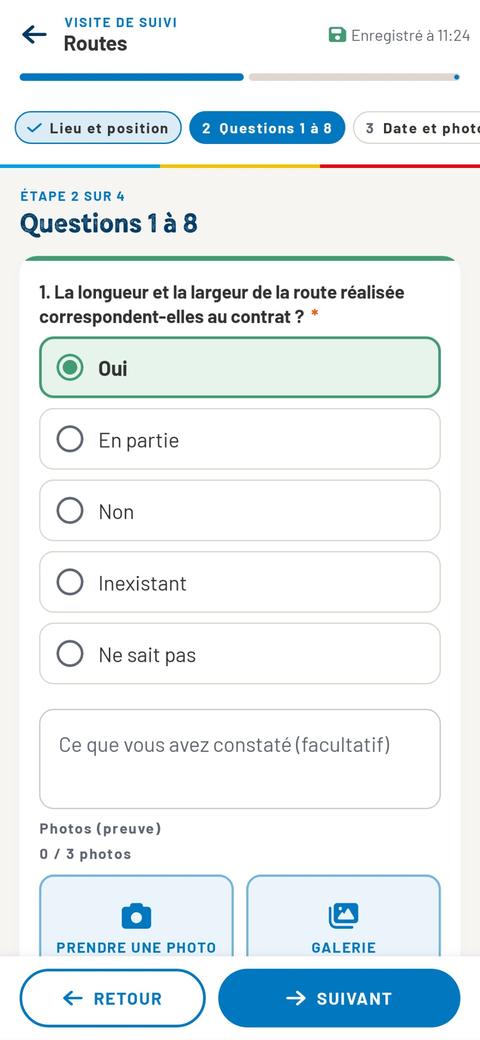
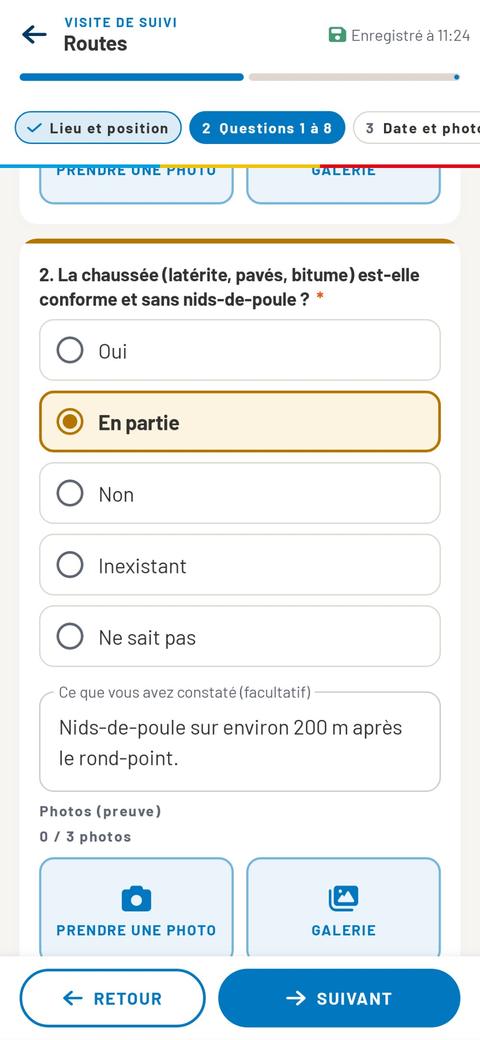
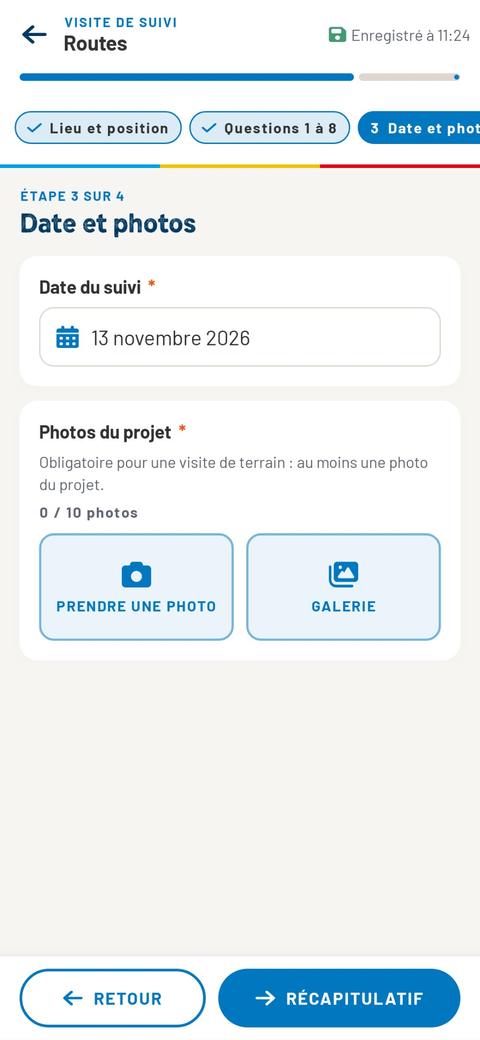
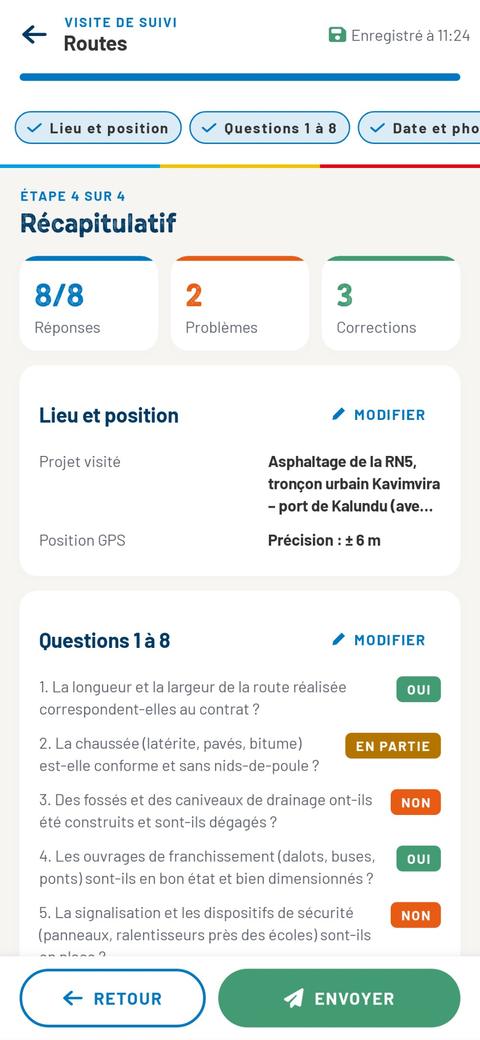
The forms in the app
Any account, even a resident’s: “Projects to follow”, one form per sector. See the seven sectors. Assessor: in addition, “Institutional diagnosis”, six questionnaires on the budget and the entity (see part 6).
In the field, without network
The projects and the questions are already in the phone. Each answer is saved by itself: “Saved at…” appears at the top of the screen. A report sent without network waits in “My submissions” and is sent when the connection returns.
Remember
The review counts the answers, the problems and the fixes requested. As long as a required field is empty, the app points it out before sending. The questions of each sector: the “Questionnaires” page.
Screens of the ClimatCheck 1.2.7 app for Android, November 2026, with sample data: nothing was sent. Project shown: asphalting of the RN5, City of Uvira.
3.3 · In the Android app
Seven sectors, seven formsAny resident with an account can follow a project: tap the sector, choose the project, answer on the spot.
| Sector in the app | Quest. | What you look at on the spot | On the “Questionnaires” page |
|---|---|---|---|
| Education | 8 | Classrooms, separate latrines for girls and boys, furniture, access, parents’ committee | “School” |
| Health | 8 | Premises, water and electricity, medical waste, equipment, health committee, staff | “Health centre” |
| Roads | 8 | Length and width, road surface, drainage, culverts and bridges, road safety | “Road and bridge” |
| Energy and Electricity | 7 | Poles, street lamps or solar panels, safe wiring, connections, tariffs, maintenance | “Electricity and energy” |
| Water and Water Resources | 8 | Water points built, water available and tested, leaks, management committee, price displayed | “Water and sanitation” |
| Public buildings · Market | 7 | Stalls, fair allocation of places, fees displayed, latrines and waste | “Market” |
| Public buildings · Public building | 7 | Compliance with the plans, roof and walls, water and electricity, accessibility, use | “Public building” |
Who can follow a project?
Any resident with an account. No account yet? “Continue with WhatsApp” or “Google” opens one. You see the two requests and the seven sectors, for all published projects.
In each form
The project visited and the GPS position; 7 or 8 questions (Yes, Partly, No, Non-existent, Don’t know), with a note and up to 3 photos per answer; the monitoring date and the photos of the project.
Remember
The steps, screen by screen: the visit in the app. The questions, word for word: the “Questionnaires” page. Assessor: in addition, “Institutional diagnosis”.
Screen of the ClimatCheck 1.2.7 app for Android, November 2026. On the website, the visit also opens the project questionnaire and the infrastructure questionnaire (see the data of a visit).
3.4 · The data to collect
What a visit must report
| Subject | Data to collect | Proof |
|---|---|---|
| Existence | Does the project exist, at the announced place? | Geolocated photo, overall view |
| Public information | Signboard: cost, company, funding, deadlines. | Photo of the signboard |
| Documents | Contract and cost estimate shared or displayed? | Copy, photo, or date of the refusal |
| Progress | Physical progress in %, compared with the schedule. | Dated photos, note with figures |
| Materials | Type, quality and quantities in line with the cost estimate? | Detail photos |
| Quality | Visible defects: cracks, leaks, drainage, finishes. | Photos, measurements |
| Safety and environment | Fencing, warning signs; erosion, waste, trees cut down. | Photos |
| Stoppages and delays | Works stopped or delayed? Since when? Public explanation? | Dates, testimonies |
| Payments | Complaints about late payment of the workers or the company. | Note, without names |
| Participation | Were the people informed and consulted? | Beneficiary survey |
| Integrity | Signs of corruption: bribes, overbilling, fictitious company, theft of materials. | Precise facts, never rumours |
| Use | Is the completed structure used and maintained? | Photos, beneficiary survey |
On the website: three questionnaires per visit
Monitoring an investment project
8 questions: existence, progress, quality, use.
Building-site monitoring
14 questions: contract and cost estimate, signboard, materials, safety, payments, signs of corruption.
The type of structure
School, health centre, road and bridge, water and sanitation, market, electricity and energy, public building: 7 or 8 questions.
And the beneficiaries
“Survey of direct beneficiaries”: 8 questions asked to the people the project is meant to serve.
In this guide
All the questions of these questionnaires: the “Questionnaires” page. In the app: the sector’s form, 7 or 8 questions (see the seven sectors).
3.5 · After the visit
Send, check, publish
Follow your submission
In the app, “My submissions” shows the state of each submission: waiting for the network, sent, published, or “Refused: needs a fix”. Open it after each visit. On the website, the assessor follows their assessments in “My space”.
If the SuperMonitor asks for a detail — a blurred photo, a missing note, an answer without proof — complete it quickly: an incomplete report is not published.
After publication
- The project’s status is updated according to what was found.
- The findings are presented to the authorities (see part 5).
- A new visit checks the corrections announced.
Remember
A visit is only useful if it is followed up: go back and look, with the same questions, to measure what has changed.
My checklist · Before sending
- Each answer has its note and its proof.
- The photos show the structures, not the people.
- Progress is noted in %.
- The amounts and the dates are written in the note.
- No name of any person interviewed.
Take action
Choose a project “In progress” near you on govcheck.cerc.cd/projets and go and see whether the site signboard is in place.
Part
4
Follow the budget
Budget tracking starts before the vote: know your entity and make your priorities heard. It continues all year: compare what was voted with what was collected and spent.
- 4.1 Before the vote: take part in the budget hearings
- 4.2 After the vote: compare the voted and the executed budget
- 4.3 The data to collect on the budget
- 4.4 Read the dashboard, screen by screen

Read part 4Close part 4
4.1 · Step 1 of the cycle
Before the vote: take part in the budget hearingsKnow your entity, then make your neighbourhood’s priorities heard.
Know your entity
Who decides, who collects, who spends? First of all, make a list:
- the Mayor or the Burgomaster, and the heads of service;
- the elected members of the deliberative body;
- the public bodies (SNEL, REGIDESO…);
- the groups that are often forgotten: women, young people, people living with disabilities, displaced people.
On ClimatCheck
The “My entity” page shows the profile of each entity, its services, its official fees and its projects: govcheck.cerc.cd/en/mon-entite
Local Development Committees (CLD)
They are residents’ representatives who take part in the entity’s budget. CERC identifies them and trains them in the budget process and in citizen monitoring of budget execution.
Find the budget calendar
Ask the entity for the dates of the hearings and of the vote. The calendar must be public.
Prepare your priorities
With the committee and your neighbours: three needs at most, each with the place, the number of people affected and a solution.
Take part in the hearing
Speak up for the needs of your community. Make sure that women, young people and people living with disabilities get to speak.
Ask for the minutes
The priorities expressed must be written in minutes that anyone can read.
Follow what is taken into account
After the budget decisions: which priorities were kept, and why? Are they in the voted budget?
Fill in the questionnaire
“Taking part in preparing the budget” keeps a record of each hearing.
To note at each hearing
| Data | What to write |
|---|---|
| Date and place | The day, the time, the room or the neighbourhood. |
| Announcement | Made at least 7 days before? By town crier, radio, notice board, church? |
| Neighbourhoods | Did every neighbourhood or groupement have its hearing? |
| Participants | How many people; how many women (at least 30%?), young people, people living with disabilities. |
| Priorities | The needs expressed, word for word. |
| Minutes | Do they exist? Where can they be read? |
| Feedback | Did a public meeting explain the choices? |
| Vote | Public debate and vote? Before the start of the financial year? |
Remember
A priority that is not written in the minutes will be hard to track. Ask for it to be included.
4.2 · Step 2 of the cycle
After the vote: compare the voted and the executed budgetVerified facts are the strength of monitoring: without them, nothing changes.
Two figures to put side by side
The voted budget
What the entity planned to collect and spend during the year, sector by sector.
The executed budget
What was really collected and spent. The gap between the two is the first question to ask.
On the revenue side
- Has the retrocession been received? How much, and when?
- Are the local tax rates displayed?
- Is an official receipt given for each payment?
- Does the money go into the entity’s bank account?
On the spending side
- Does spending follow the voted lines?
- Is investment moving forward: at least half by the middle of the financial year?
- Do contracts go through a call for tenders when the law requires it?
The documents to ask for
| Document | What it tells you |
|---|---|
| Voted budget (edict or resolution) | The planned revenue and spending, by sector. |
| Citizens’ budget | The same budget, in simple words and in the local language. |
| Execution report | What was collected and paid, at least every six months. |
| Administrative account | The statement for the previous financial year, voted by the deliberative body. |
| Contract notices and results | Which company, for what amount, within what time. |
| Contract and cost estimate of a project | What the company must build, with what, by when. |
In this guide
A template letter to ask for these documents: the templates.
Asking for information, in three steps
In writing
A short, polite letter that says which document you are asking for and why.
With a record
Keep a copy signed “received on…” by the secretariat. Note the date.
Note the answer
Document handed over, refusal or silence: each answer is a piece of data for the “Transparency and access to information” questionnaire.
On ClimatCheck
The dashboard shows the voted and executed budget by sector, and the local tax revenue month by month: govcheck.cerc.cd/en/tableau-de-bord
Warning
A figure you heard is not a verified figure. Write only the amounts you read in a document, and say which one.
4.3 · The data to collect
Six questionnaires for the entity’s budget
| Questionnaire | What it checks | Proof to gather |
|---|---|---|
| Taking part in preparing the budget 11 questions | Public calendar, hearings announced 7 days before, all neighbourhoods, women and young people, minutes, feedback, public vote on time. | Announcement, attendance list, minutes, date of the vote |
| Transparency and access to information 6 questions | Voted budget, citizens’ budget, execution reports, administrative account and contracts published; documents handed over on request, free of charge. | Photo of the notice board, copy of the document, date of the request and of the answer |
| Revenue 6 questions | Retrocession received and published, tax rates displayed, receipts given, payment into the entity’s account, illegal collections. | Amounts and dates, photo of the fees, receipt |
| Budget spending 6 questions | Execution rate of investment, respect for the voted lines, authorised changes, calls for tenders, payments on time. | Execution report, amounts voted and paid |
| Oversight and accountability 6 questions | Administrative account voted, audits and their follow-up, complaints mechanism, public answers, anti-corruption body. | Resolution, audit report, complaints number or box |
| Institutional diagnosis 17 questions | The entity assesses itself, from 1 to 5, on its organisation and its practices. | Internal documents cited in the note |
How to go about it
One questionnaire at a time
Start with the one for which you already have documents.
One proof per answer
A document, a photo, a date. Without proof, answer “Don’t know”.
Amounts in the note
Write the amount, the date and the document it comes from.
Remember
In “Revenue”, the question on illegal collections is reversed: “Yes” points to a problem. Describe the fact — place, date, amount — never the person.
In this guide
How to answer: answering a questionnaire. All the questions: the “Questionnaires” page.
4.4 · In pictures
Read “My entity” and the dashboard, screen by screen
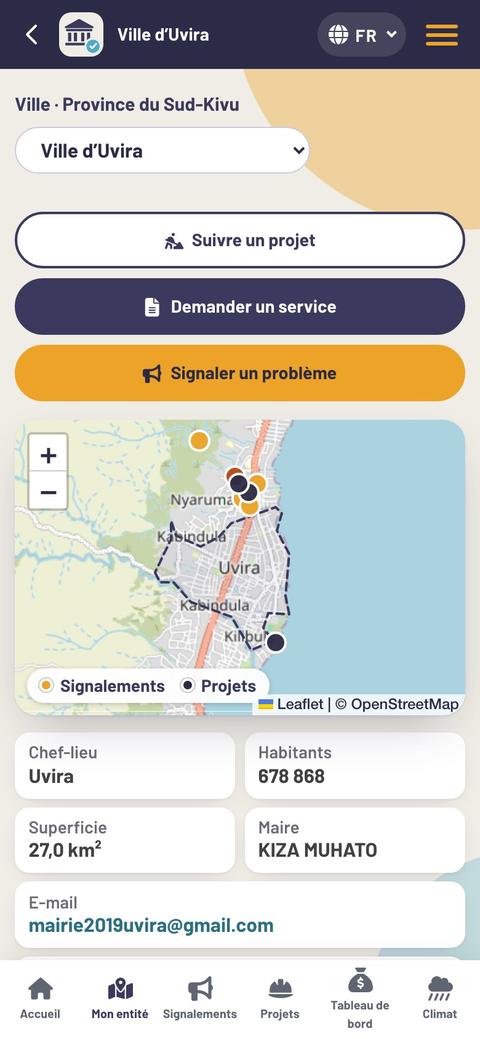
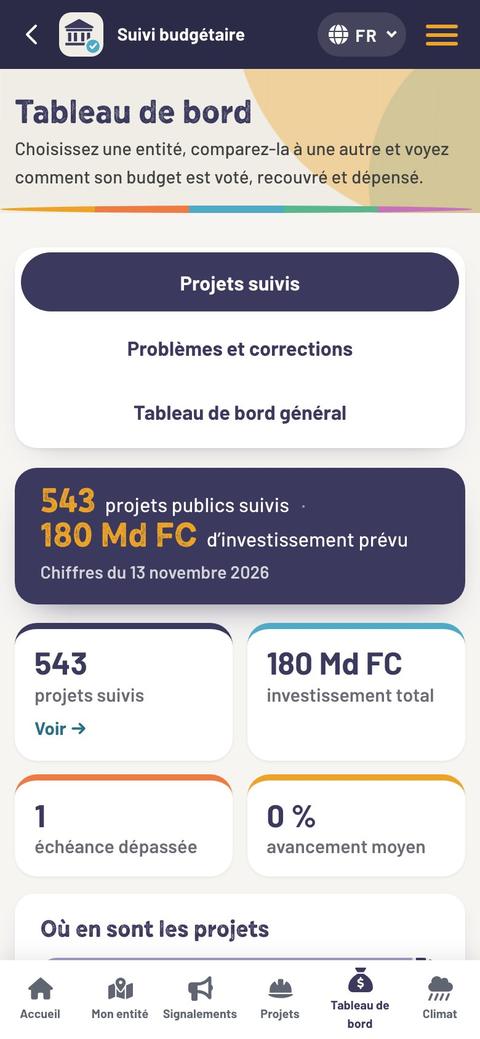
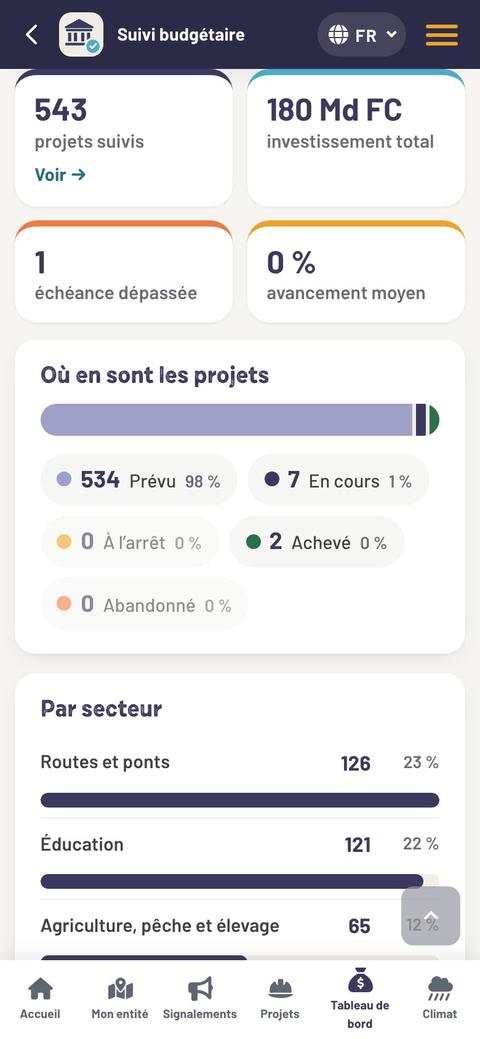
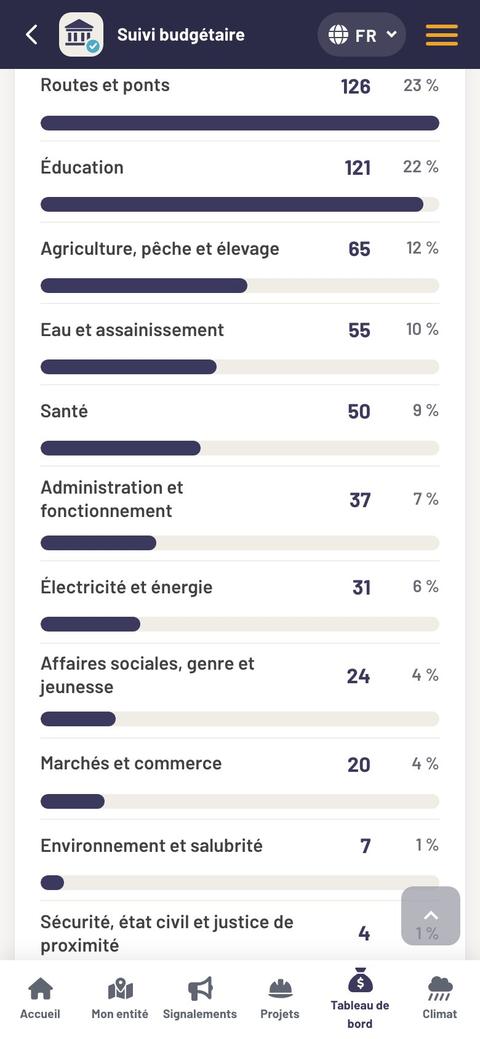
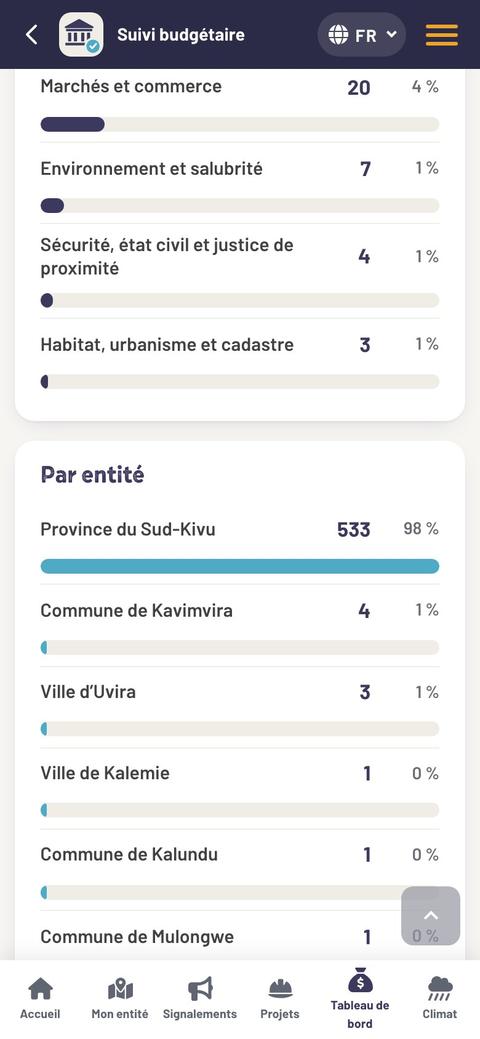
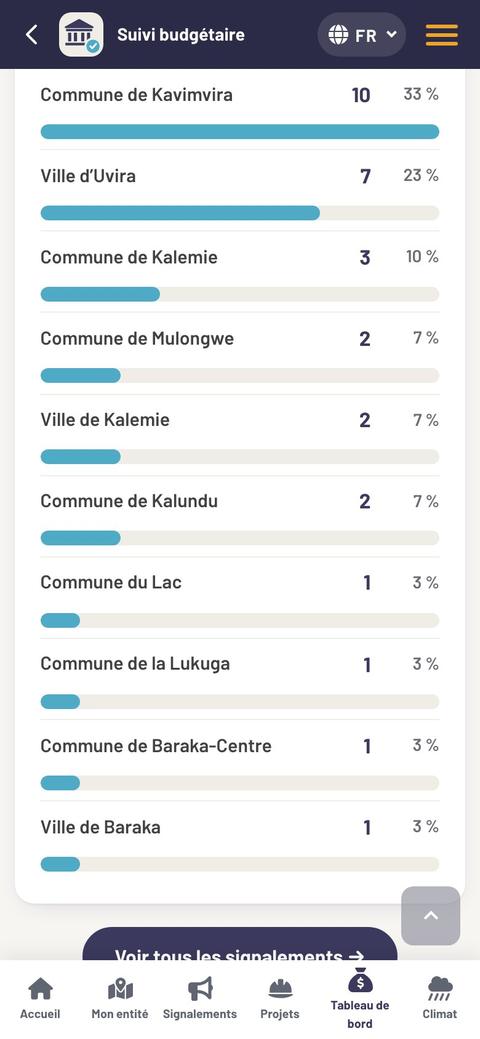
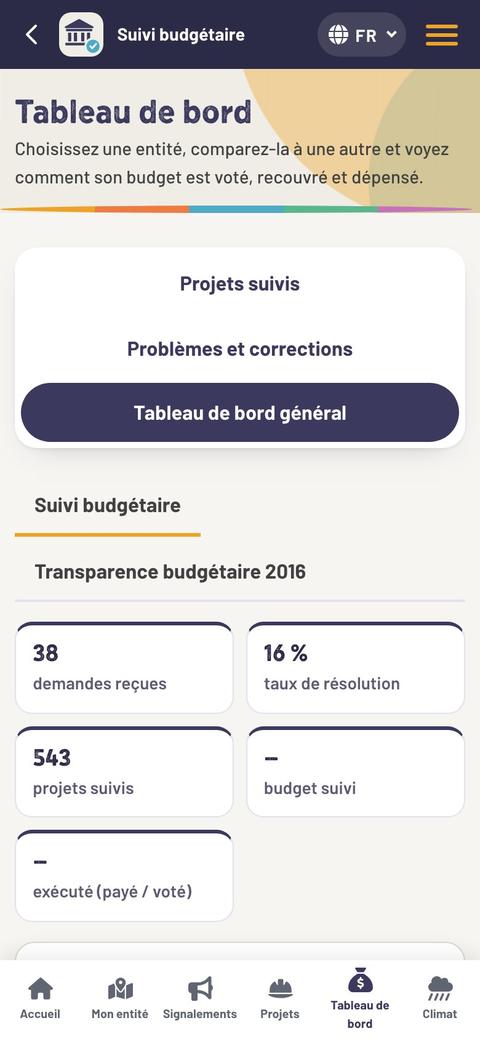
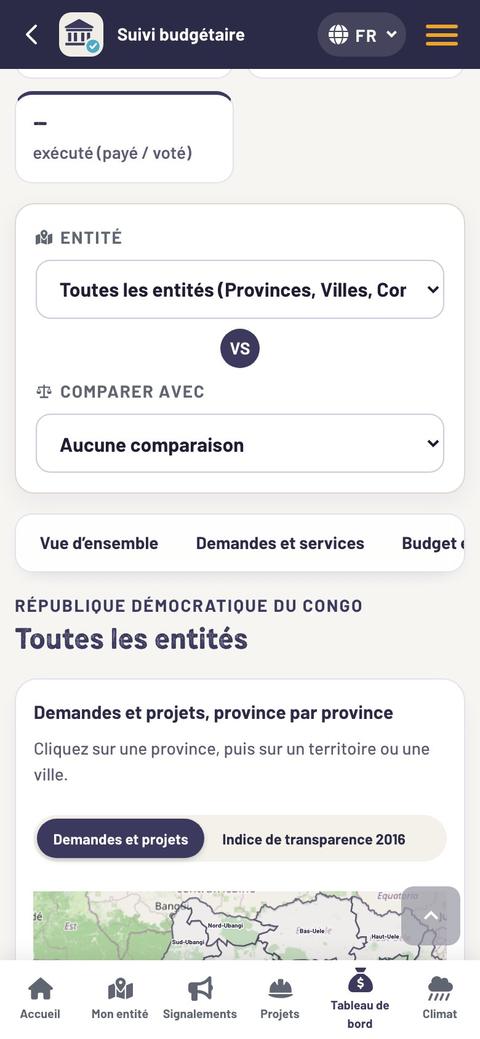
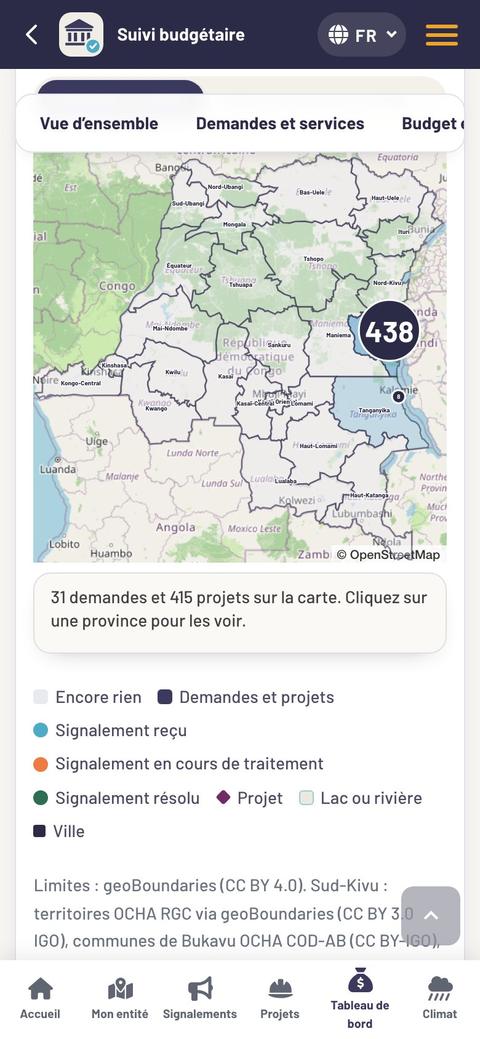
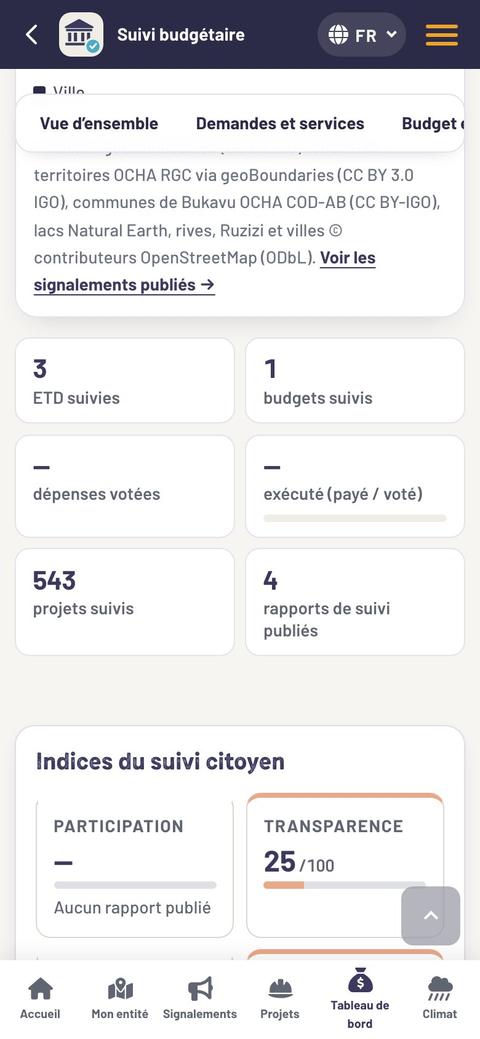
Screens of the govcheck.cerc.cd website on a phone, 13 November 2026. A dash (—) means that the data are not yet published for this entity: that is also information to note. Tabs of the general dashboard: Overview · Requests and services · Budget and execution · Projects · Transparency.
Part
5
Check, discuss, correct
A finding only has an effect if it is reliable, heard by those who decide, and then followed by a response that someone goes back to check on site.
- 5.1 Check and publish the results
- 5.2 Make the findings heard
- 5.3 Obtain corrections and check them
- 5.4 Climate: receive the rain alerts

Read part 5Close part 5
5.1 · Step 3 of the cycle
Check and publish the resultsPublished information must be reliable: that is what makes it credible.
What the reviewer looks at
- Does each answer have a note and proof?
- Are the photos sharp, taken on site, with no recognisable person?
- Do the amounts and the dates come from a cited document?
- Does the answer say what was seen, and not what was heard?
- Does the report contain a name or a private number? It is removed.
On ClimatCheck
The assessor follows the status of their assessments in “My space”; in the app, in “My submissions”.
What is published
- The score of each questionnaire, from 0 to 100.
- The answers, question by question.
- The photos of the structures.
- The entity’s Participation and Transparency indices.
What is never published
- The name and contact details of a resident who reports.
- The names of the people interviewed.
- Voice messages.
- Sensitive subjects, such as an accusation against a person.
Each entity has its account
Each ETD has its own account to view the execution of its budget and its projects, and to answer residents’ requests.
Remember
Are you asked for a clarification? Answer quickly: an incomplete report is not published, and an unpublished report changes nothing.
Data on request
The published results can be read freely on the website. The data files are provided on request to NGOs, donors and funders: info@cerc.cd
5.2 · Step 4 of the cycle
Make the findings heardThe goal is the solution, not punishment.
Choose one finding
One subject per meeting: works that have stopped, a tax with no receipt, requests left unanswered.
Show the gap
What was planned, what was found: the amount voted and the amount paid, the deadline announced and today’s date.
Find the right decision-maker
Who can act? The head of service, the Burgomaster, the Mayor, the deliberative body. Who can help them to do so?
Ask for a meeting
In writing. CERC supports citizens in presenting their findings to the elected officials and to the services concerned.
Present, propose
The facts first, the proof next, then a concrete recommendation. Stay courteous.
Note the commitment
Who will do what, by what date? Write it down and read it again together before leaving.
Prepare your message
| Element | The question to ask yourself |
|---|---|
| Goal | What precise change do we want? |
| Decision-maker | Who can do it? |
| Allies | Who can influence them: elected officials, neighbourhood chiefs, radio stations, churches, associations? |
| Message | Short, based on the facts, with a solution. |
| Proof | The published report, the photos, the documents. |
Residents’ requests count too
Residents report a problem on the website or by WhatsApp; the right service receives the request. Those still unanswered after 48 hours are among the findings to present.
What to bring to the meeting
- The page of the project or of the request on ClimatCheck, open on a phone.
- The score of the questionnaire and the three most telling answers.
- Two or three dated photos.
- The document that proves the commitment: line of the voted budget, contract, official fee.
- A written recommendation, in one sentence.
Remember
We talk about facts, never about people. An accusation without proof puts the person who makes it in danger and takes the strength out of all the monitoring.
In this guide
A findings sheet template: the templates.
5.3 · Step 5 of the cycle
Obtain corrections and check themClose the loop: a finding only has an effect if it triggers a verified response.
A concrete response
The entity’s authorities respond to the problems identified. A real response is, for example:
- the completion or the resumption of the works;
- better collection of revenue;
- a redirection of spending;
- the correction of a failure that was found.
Check in the field
Go back and look
On the promised date, at the same place, with the same questions.
Take photos again
From the same angle: before and after can be compared at a glance.
Publish the result
Fixed, partly fixed, or nothing has changed: in all three cases, it is information.
For a service request
Only the resident can say whether the problem is solved. When the service marks it “Resolved”, the resident confirms and rates the service from 1 to 5 stars.
On ClimatCheck
Each service has a results sheet: resolution rate, time to acknowledgement, residents’ satisfaction.
Measure what changes
| What is measured | Where to read it |
|---|---|
| Resolution rate of requests | Dashboard, “Requests and services” |
| Time to acknowledgement | Sheet of each service |
| Published revenue, gaps between voted and executed | “Budget and execution” |
| Progress of the projects | “Projects” page |
| Residents’ satisfaction | Stars, beneficiary survey |
Start again with the next budget
The results obtained feed the next budget cycle: what has not been fixed becomes a priority to take to the next hearing.
Remember
Always compare before and after: the same indicator, at two dates. It is the only way to show that something has changed.
My checklist · After a correction
- The promised date has passed: I went back to look.
- I have an “after” photo, from the same angle.
- The resident who reported the problem has confirmed.
- The result is published on ClimatCheck.
- I thanked the service that fixed it.
Take action
Open “Reports” on govcheck.cerc.cd, find a “Resolved” request near you and go and see whether it is true.
5.4 · Climate resilience · ClimatCheck
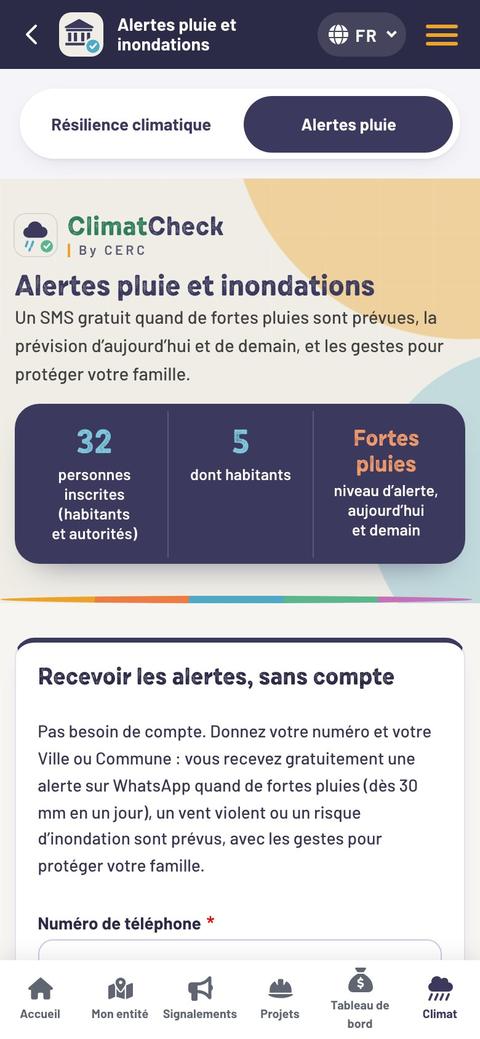
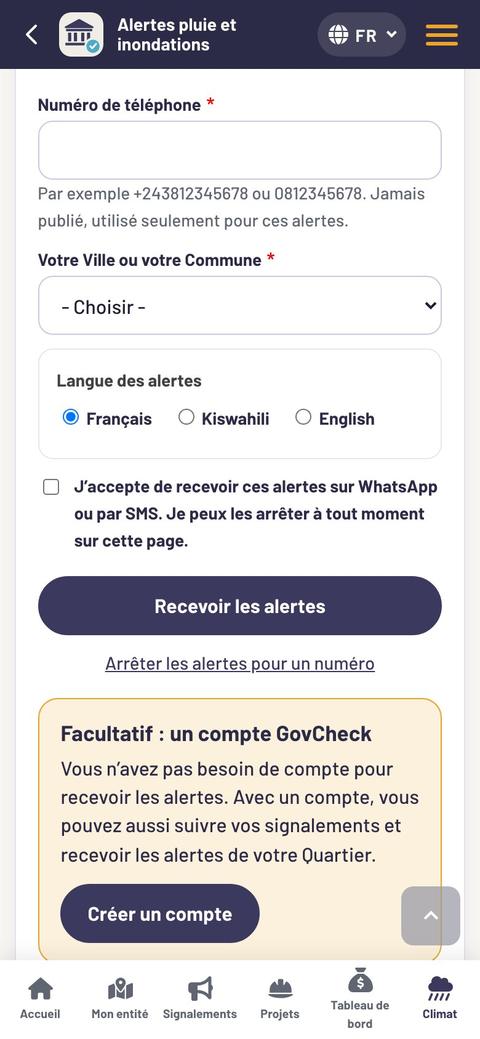
Receive the rain alerts, screen by screenAct before the disaster, and not only after.
ClimatCheck brings together in one place the rain forecasts, the floods, erosion and tree cutting reported by residents, and the adaptation projects in the budget. Any resident can receive a free alert on WhatsApp, with no account (SMS: coming soon).
Open “Rain alerts”
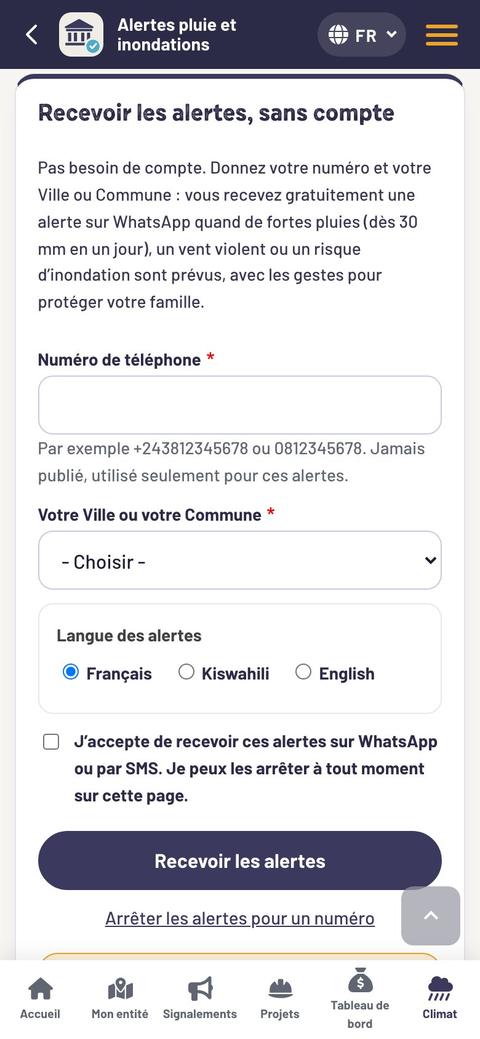
Give your number and your place
Your WhatsApp number, then your City or your Commune. The number is never published.
Choose the language, accept
Français, Kiswahili or English. Tick the box, then tap “Receive the alerts”.
| Level of the day | Rain forecast |
|---|---|
| Moderate rain | from 15 mm |
| Heavy rain: an alert is sent | from 30 mm |
| Very heavy rain | from 50 mm |
Remember
An alert is also sent in case of violent wind or a risk of flooding. A forecast is not a certainty. To stop: “Stop the alerts for a number”, on the same page.
Part
6
The data to collect
Sixteen questionnaires, 135 simple questions. For each answer: a note and proof. Here is how to answer, which questionnaire to choose and what to bring back from each kind of monitoring.
- 6.1 Answer a questionnaire
- 6.2 The sixteen questionnaires
- 6.3 Which data, for which monitoring
- → All the questions, questionnaire by questionnaire

Read part 6Close part 6
6.1 · The method
Answer a questionnaireFour possible answers, always with a note and proof.
Read the whole question
And the help line under the question: it often says what to write in the note.
Choose the answer
Based on what you saw or read yourself. A rumour is not an answer.
Write the note
One or two sentences: the fact, the place, the date, the amount, the document it comes from.
Add the proof
A geolocated photo of the structure, the signboard, the notice board or the document.
Read it again, then send
Without network, the report stays in the phone and is sent when the connection returns.
The reversed question
For a few questions, “Yes” points to a problem: “Have illegal collections been observed?”, “Have the works been stopped without a public explanation?”. The questionnaire says so under the question.
The score from 0 to 100
The answers to a questionnaire give a score from 0 to 100. These scores feed the entity’s citizen monitoring indices: Participation and Transparency.
The institutional diagnosis
The entity assesses itself, from 1 to 5 for each question. The questionnaire says what each level means.
The beneficiary survey
It is filled in with the people the project is meant to serve, one person at a time, with no name or contact details. The results are published only from 5 answers.
Never do this
Answer “Yes” to please, “No” out of anger, or fill in a questionnaire without having gone to see.
6.2 · Which one to choose?
The sixteen questionnaires
| The entity’s budget | Quest. | When to use it |
|---|---|---|
| Taking part in preparing the budget | 11 | After the hearings and the budget vote |
| Transparency and access to information | 6 | After asking for the documents |
| Revenue | 6 | During the financial year: retrocession, taxes, receipts |
| Budget spending | 6 | In the middle of the financial year, then at the end |
| Oversight and accountability | 6 | After the vote on the administrative account |
| Institutional diagnosis | 17 | Once a year, by the entity itself |
| The project visit | Quest. | When to use it |
|---|---|---|
| Monitoring an investment project | 8 | At each visit, whatever the structure |
| Building-site monitoring | 14 | On each work site: contract, materials, safety |
| Survey of direct beneficiaries | 8 | With the people the project is meant to serve |
On ClimatCheck
The full list, with the legal texts each questionnaire is based on: govcheck.cerc.cd/en/questionnaires
| The type of structure | Quest. | What it looks at |
|---|---|---|
| School | 8 | Classrooms, separate latrines for girls and boys, furniture, access, parents’ committee |
| Health centre | 8 | Premises, water and electricity, medical waste, equipment, health committee, staff |
| Road and bridge | 8 | Length and width, road surface, drainage, culverts and bridges, road safety |
| Water and sanitation | 8 | Water points built, water available and tested, leaks, management committee, price displayed |
| Market | 7 | Stalls, fair allocation of places, fees displayed, latrines and waste |
| Electricity and energy | 7 | Poles, street lamps or solar panels, safe wiring, connections, tariffs, maintenance |
| Public building | 7 | Compliance with the plans, roof and walls, water and electricity, accessibility, use |
Remember
On the website, a project visit opens three questionnaires at once: the project one, the infrastructure one and the one for the type of structure. The beneficiary survey is added to them. In the app: the form of the sector (see the seven sectors).
In this guide
The 135 questions, word for word: the “Questionnaires” page.
6.3 · At a glance
Which data, for which monitoring
Seen
Observed by you, on site or in a document.
Dated
The day of the visit, the date of the document.
Located
Position of the phone, neighbourhood, landmark.
Proven
A photo, a copy, a receipt.
No names
Facts and structures, never people.
| What you follow | The data to collect | With which tool | In this guide |
|---|---|---|---|
| A public service | Entity, category, title, description, place, photos; then the date of each step: Received, Acknowledged, Resolved. | “Report a problem”, “Track my request” | 2.3 |
| A project | Existence, signboard, documents, progress in %, materials, quality, safety, stoppages, payments, use. | Three visit questionnaires, geolocated photos | 3.4 |
| The beneficiaries | Need, consultation, usefulness, money asked for, satisfaction. | Survey of direct beneficiaries | 3.3 |
| The budget, before the vote | Date and announcement of the hearings, participants, priorities, minutes, feedback, vote. | Taking part in preparing the budget | 4.1 |
| The budget, after the vote | Amounts voted and executed, retrocession, taxes and receipts, contracts, documents published or refused. | Transparency, Revenue, Budget spending, Oversight | 4.3 |
| The corrections | Commitment made, promised date, “after” photo, confirmation by the resident, stars. | New visit, “Track my request” | 5.3 |
| The climate | Flood, erosion, tree cutting: place, date, houses or roads affected, photos. | “Report a problem”, rain alerts | 5.4 |
Part
7
Toolbox
Templates to copy, safety rules, answers to the most common difficulties, and everything you need to become an assessor and install the app.
- 7.1 Six ready-to-use templates
- 7.2 Safety, conduct and common difficulties
- 7.3 Become an assessor, install and use the app
- 7.4 Glossary and useful addresses

Read part 7Close part 7
7.1 · Templates 1 to 3
Ask, announce, reportCopy, fill in the blanks, keep a copy.
1 · Letter requesting budget information
Place, date
To the Mayor / the Burgomaster of entity
Subject: request for budget documents
Dear Mr Mayor / Dear Madam Burgomaster,
We are name of the committee or organisation. As part of the citizen monitoring of the budget, we kindly ask you to send us:
☐ the voted budget for the financial year year;
☐ the latest execution report;
☐ the administrative account for the financial year year;
☐ the contract and the cost estimate of the project name of the project.
These documents will help us to inform residents and to talk with your services. We remain available for any meeting.
Yours faithfully,
Name, position, telephone, signature
Received on date by name and stamp
2 · Announcement of a project visit
Hello name of the person in charge,
I am name, a ClimatCheck assessor trained by CERC. I would like to visit the project name of the project on date at time.
The visit takes about one hour. I will look at the site signboard, the progress and the quality of the works, and I will take photos of the structures, never of people.
Could you show me the contract and the cost estimate? The report will be reviewed by CERC before it is published on govcheck.cerc.cd.
Thank you for your welcome. Name, telephone
Remember
An announced visit goes better. If access is refused, stay courteous, note the date and the reason: the refusal is a piece of data.
3 · WhatsApp message to report a problem
To +243 82 733 2229, in your language:
Hello. I am reporting the problem, in one sentence.
Place: Commune, neighbourhood, street, landmark.
Since: date or duration.
Who is affected: households, school, market…
Photo: attach 1 to 3 photos of the problem.
ClimatCheck passes the message on to the right service — Commune, City or Province — and you receive the reference and the answers on WhatsApp.
Warning
Do not write the name of a person you are accusing. Describe the fact: the place, the date, the amount asked for, whether a receipt was given or not.
7.1 · Templates 4 to 6
Note, report back, presentTo copy into a notebook: the essentials fit on one page.
4 · Project visit sheet
| Project | name, place |
| Date and time | … |
| People met | positions, no names |
| Site signboard | ☐ yes ☐ no · photo ☐ |
| Contract and cost estimate | ☐ seen ☐ refused ☐ missing |
| Progress | …% · planned: …% |
| Works | ☐ in progress ☐ stopped since … |
| Materials, quality | defects found |
| Site safety | ☐ fenced ☐ open |
| Photos taken | number · overall view ☐ |
| Beneficiaries interviewed | number |
| To visit again on | date of the next visit |
5 · Report on a budget hearing
| Entity | City, Commune |
| Date, place | … |
| Announced on | date by radio, notice board… |
| Participants | … including … women, … young people |
| People living with disabilities | ☐ involved ☐ absent |
| Priority 1 | need, place |
| Priority 2 | need, place |
| Priority 3 | need, place |
| Minutes | ☐ written ☐ handed over ☐ refused |
| Feedback planned for | date |
| Priorities kept in the voted budget | which ones, which line |
6 · Findings sheet for a meeting
The finding: one fact, in one sentence
What was planned: amount voted, deadline, official fee
What we saw: date, place, progress, amount
The proof: ClimatCheck report, photos, document
Who is affected: neighbourhoods, number of people
Our recommendation: one precise action
Commitment made: who, what, by what date
In this guide
Preparing the meeting with the authorities: make the findings heard. The data of a hearing: the budget hearings.
7.2 · Before going into the field
Safety, conduct and common difficulties
Safety and conflicts
Before each monitoring activity, ask yourself three questions:
- Who could be bothered by this monitoring?
- What are the risks for the assessors and for the residents who report?
- Which safety rules are we going to follow?
Our safety rules
- Visits are made in pairs, in daylight.
- Someone knows where we are going and when we are coming back.
- No names in the notes or on the photos.
- Sensitive subjects are never published.
- If there is tension, we leave and we note it.
The map of actors
List each actor in the entity: their role, their power to act, their interest in the monitoring. Spot the allies and the decision-makers, and note whom to contact for each type of problem.
The assessor’s code of conduct
I say what I saw
No rumour, no guesswork. What I have not seen, I do not know.
I protect people
No name, no face, no private number.
I accept nothing
No money, no gift, no transport offered by the company or the service I am visiting.
I declare my ties
A relative on the work site, an interest in the contract: I say so, and another assessor does the visit.
I stay courteous
The goal is the solution, not punishment.
Integrity brings together three requirements: accountability, competence and ethical behaviour.
Common difficulties
| The difficulty | What to do |
|---|---|
| I am refused a document. | Ask in writing, keep the dated copy, answer “No” to the question and attach the letter. |
| I am refused access to the work site. | Do not insist. Take photos from the public road, note the refusal. |
| No site signboard. | That is an answer: “No”, with an overall photo. |
| No network. | Carry on: the app keeps the report and sends it later. |
| Someone gives me a name to denounce. | Listen, ask for facts and proof. Do not note the name. |
| My request gets no answer. | After 48 hours, tell your committee or the SuperMonitor. |
| I do not know how to answer. | “Don’t know” is an honest answer. |
7.3 · In pictures
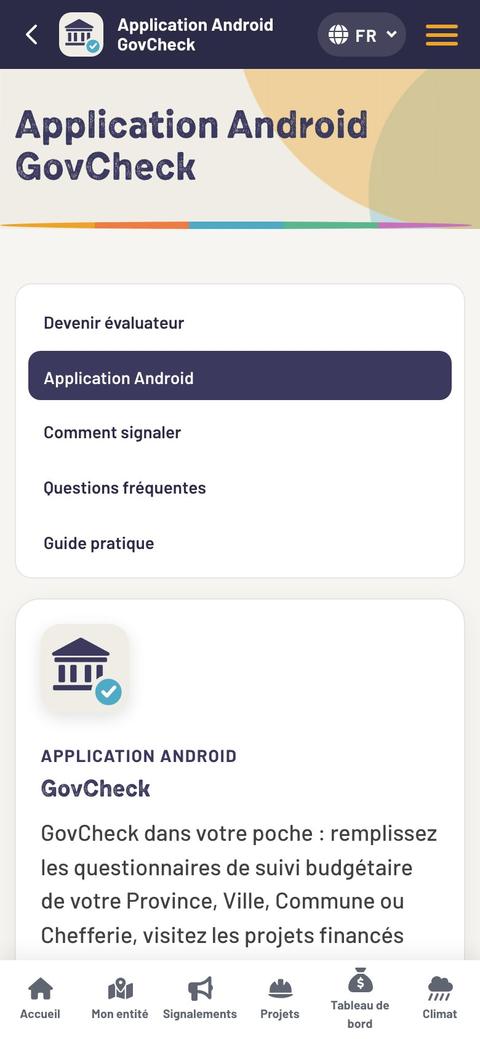
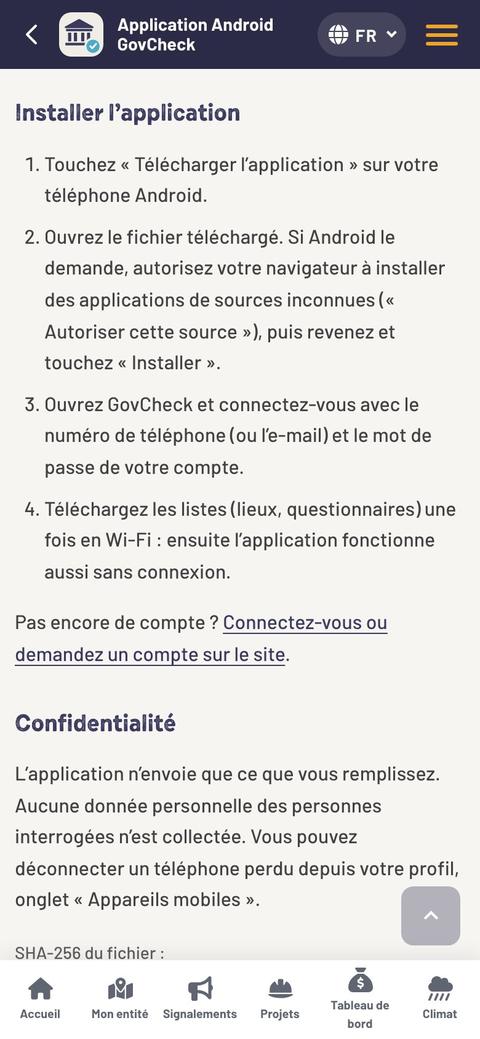
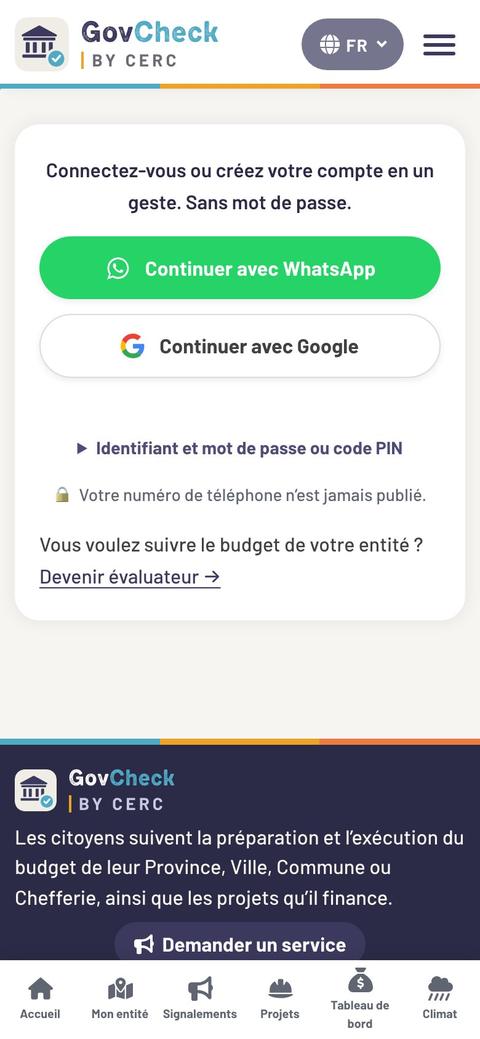
Become an assessor and install the app, screen by screen
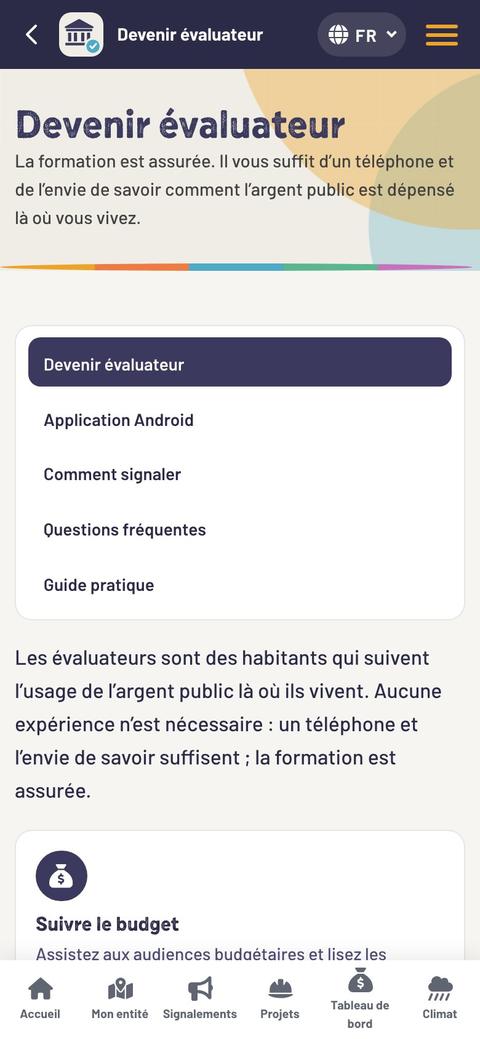
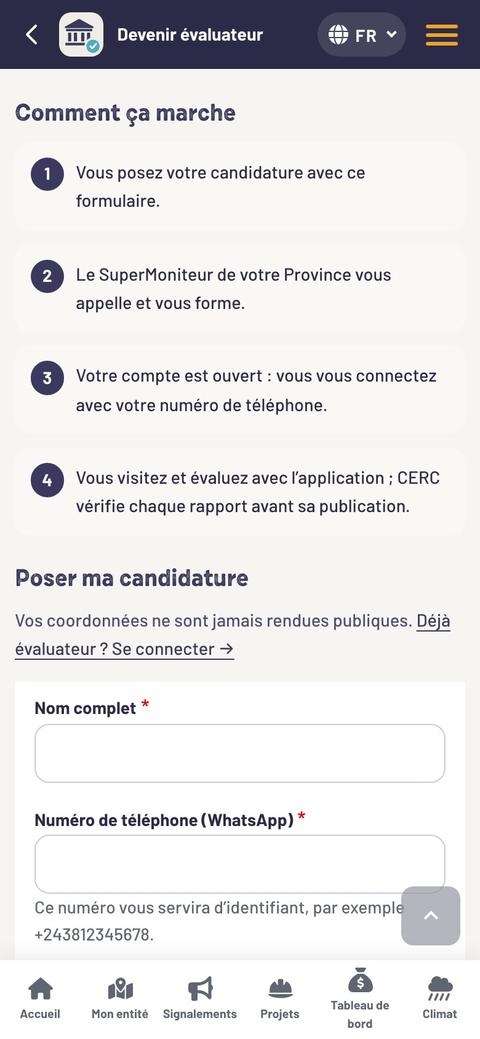
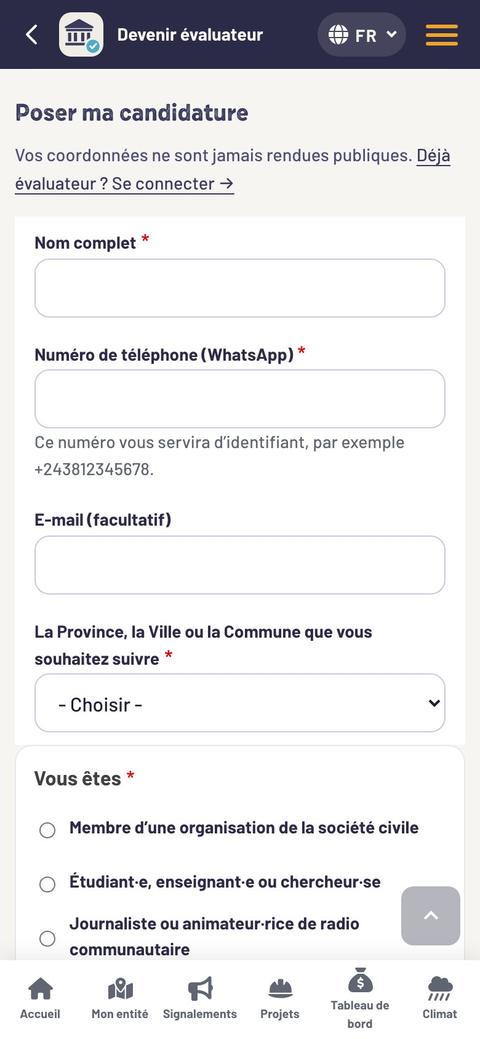
Become an assessor
You apply on govcheck.cerc.cd/en/devenir-moniteur-communautaire. The SuperMonitor of your Province calls you and trains you. Your account is opened: you sign in with your phone number. CERC checks each report before it is published.
The Android app
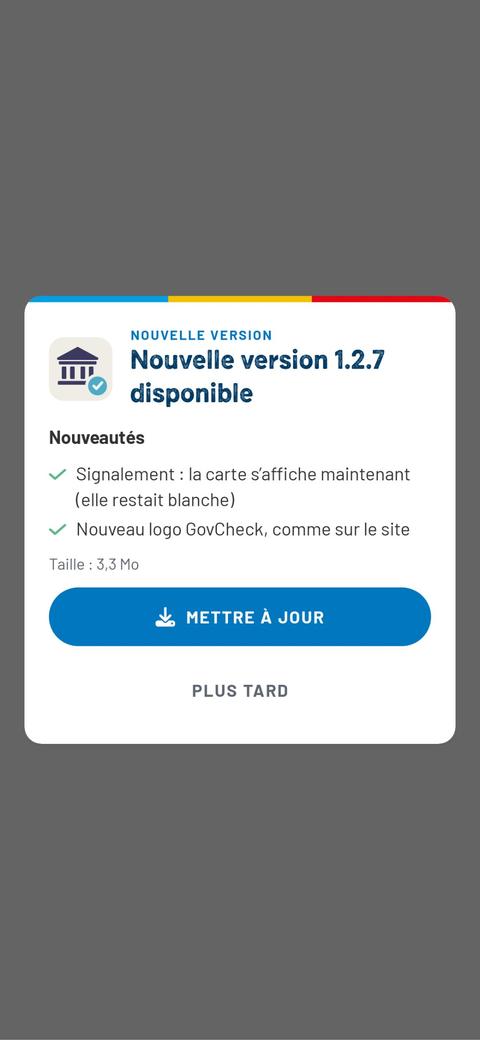
Version 1.2.7 · 3.3 MB · Android 8.0 or later, on govcheck.cerc.cd/en/application. After signing in, download the lists (places, questionnaires) once on Wi-Fi: the app then works offline. Photos are compressed to save your mobile data.
Remember
“My submissions” shows the state of each submission. Lost your phone? Sign it out from your profile, “Mobile devices” tab. The app sends only what you fill in.
7.3 · The Android app
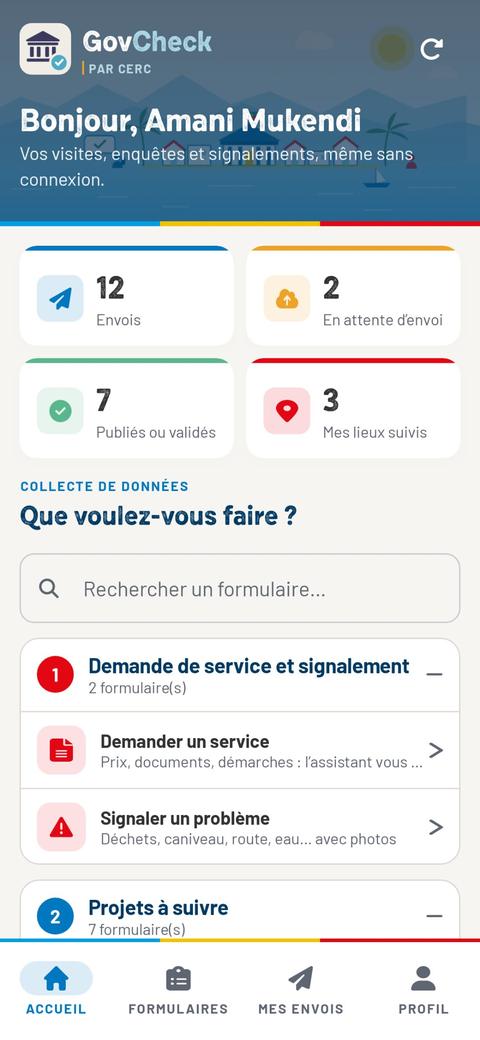
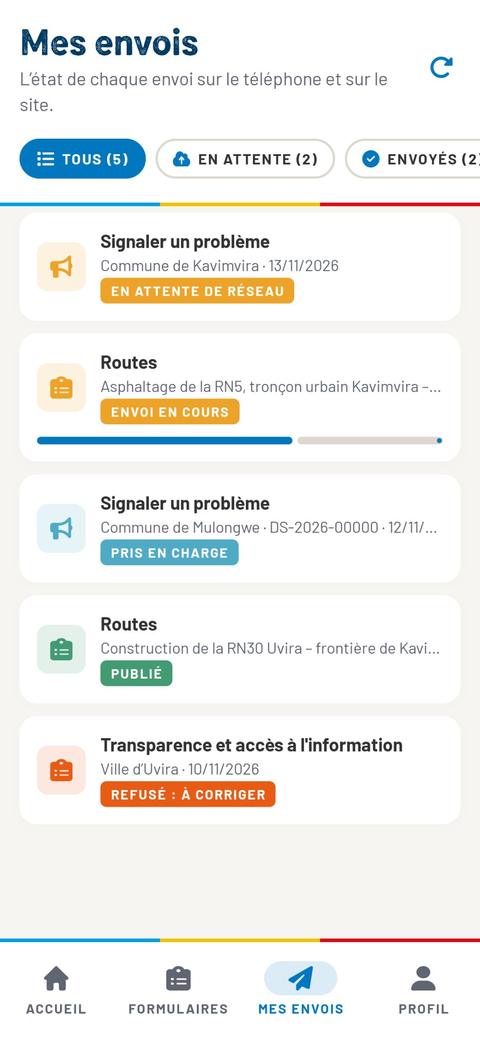
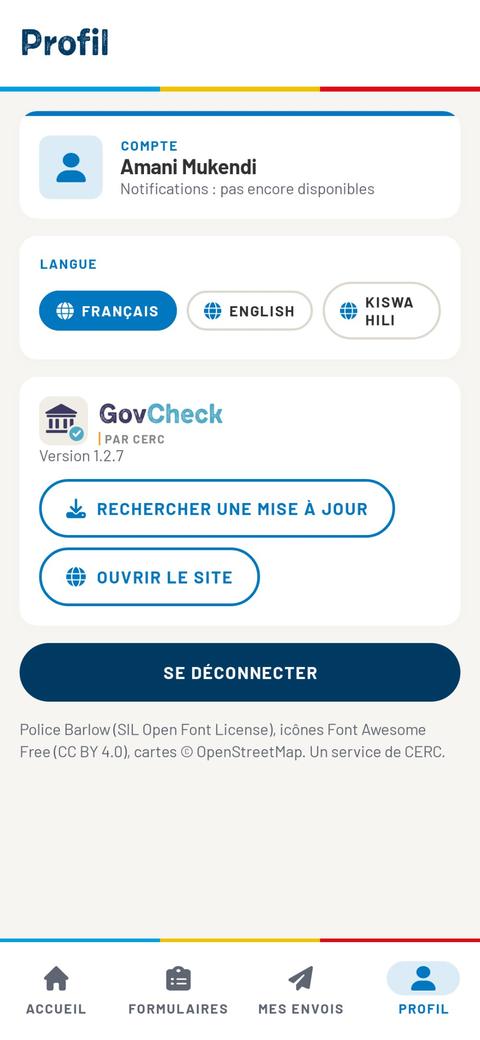
The ClimatCheck app, screen by screenFour tabs at the bottom of the screen: Home · Forms · My submissions · Profile.
Sign in
The account is the one of your space on the website. “Continue with WhatsApp”: the app gives you a message to send on WhatsApp, then signs you in; if you have no account, it opens one. Without signing in, only the yellow button “Request a service, no account needed” is open (see requesting a service in the app).
My submissions
“Waiting for the network”: the submission will be sent by itself. “Sending”: the bar moves forward with the photos. “Acknowledged”, “Published”: the rest happens on the website. “Refused: needs a fix”: open the submission and tap “Fix and resend”.
Remember
Version 1.2.7 does not send notifications yet: open “My submissions” to see where each submission stands. When you sign out, the drafts and the pending submissions stay on the phone. Resident: two requests and seven sectors; assessor: in addition, “Institutional diagnosis”.
Screens of the ClimatCheck app 1.2.7 for Android, November 2026, with sample data: nothing was sent. The name shown is an example.
7.4 · The words of monitoring
Glossary and useful addresses
- ETD
- Decentralised territorial entity (entité territoriale décentralisée): City, Commune, Sector or Chiefdom, with its own budget.
- Local Development Committee (CLD)
- Residents’ representatives who take part in the entity’s budget; CERC trains them in citizen monitoring.
- Budget hearing
- The public meeting where the entity presents its budget and where residents express their priorities.
- Voted budget / executed budget
- The budget adopted for the year, then what was really collected and spent.
- Retrocession
- The share of national or provincial revenue returned to the entity.
- Administrative account
- The statement of the revenue and spending of a financial year, voted by the deliberative body.
- Assessor
- A trained person who answers the ClimatCheck questionnaires for an entity or a project.
- SuperMonitor
- The person who trains the assessors and reviews the assessments before they are published.
- Questionnaire
- A list of simple questions (yes, partly, no, don’t know) on one subject: revenue, work site, school…
- Score
- A mark from 0 to 100 calculated from the answers to a questionnaire.
- Service request
- A report or a request from a resident to their City or Commune, with a reference number and a tracking code.
- Correction
- The resolution of a problem, seen on site or confirmed by the resident.
- Resolution rate
- The share of the reported problems that have been fixed and checked.
On govcheck.cerc.cd
| Report a problem, request a service | /en/demande-de-service |
| Track my request | /en/demande-de-service/suivi |
| Residents’ requests | /en/signalements-des-habitants |
| Projects | /en/projets |
| Dashboard | /en/tableau-de-bord |
| My entity | /en/mon-entite |
| Questionnaires | /en/questionnaires |
| Rain alerts | /en/alertes-climat |
| Become an assessor | /en/devenir-moniteur-communautaire |
| Android app | /en/application |
| AI and your data | /en/ai-and-your-data |
| About | /en/about |
You can also report to +243 82 733 2229, in your language.